
An EQ (equalizer) is a tool that raises or lowers the low and high parts of a sound. In a cover-song mix you use it to tidy the “muddiness” and “harshness” of a recorded voice so it is easy to hear above the backing track. This article explains the basics of vocal EQ, starting with how to read the frequency bands.
Disclosure: This article contains affiliate links. If you buy through them, SoundBounty may earn a commission at no extra cost to you. Information is as of the date we checked it and can change.
Key points
- With vocal EQ, start by cutting.
- Reduce unwanted lows with a low-cut.
- Check around 125 to 500 Hz for muddiness and around 1.5 to 4 kHz for harshness.
- The bands are a starting point. They change with the voice and the recording room.
- Do not decide with the vocal soloed. Listen together with the backing track.
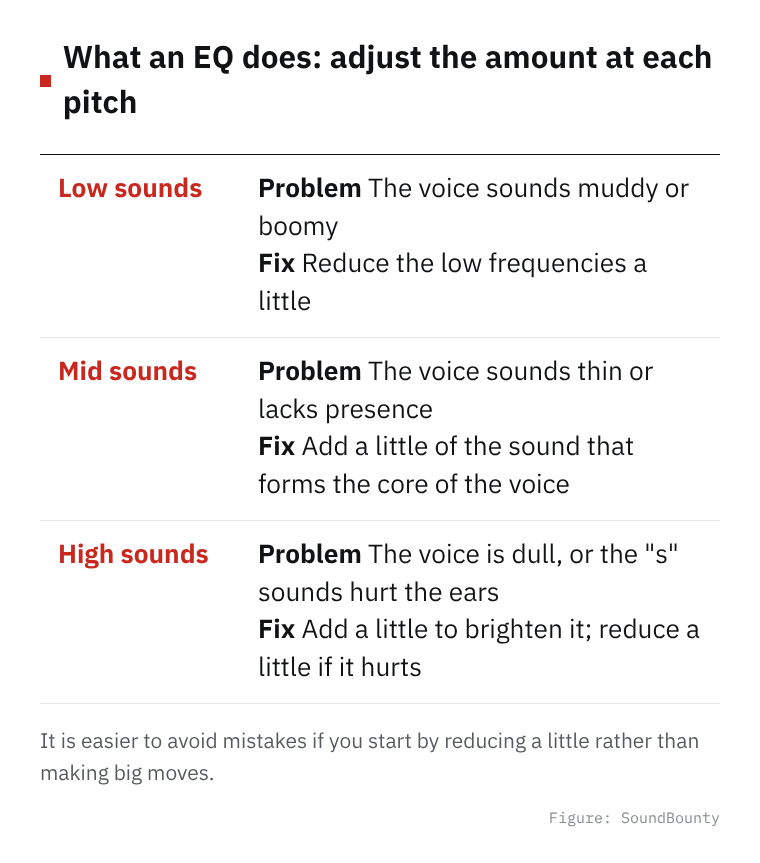
Figure: SoundBounty
Start by cutting
An EQ can reduce parts of the sound (cut) or increase them (boost). On vocals, the basic approach is to cut the part that bothers you first. Boosting is for after the cut, when you have a goal such as “I want it a little brighter”.
Types of EQ filters
An EQ combines several types of filters. Based on FabFilter’s explanations, here are the ones used most on vocals.
- Low-cut (high-pass): reduces sound below the frequency you set. It “does not let low sound through”, which is why it is also called a low-cut. It always cuts, and the strength of the cut is given in dB per octave.
- Bell: raises or lowers only one band. It is the most widely useful shape.
- Shelf: raises or lowers everything above a frequency (high shelf) or below it (low shelf).
- Notch: cuts a very narrow band deeply.
The “Q” knob sets the width of the band. In FabFilter Pro-Q 4, Q = 1 is the standard width. What a Q value means differs slightly between EQs.
Sources: FabFilter Learn, FabFilter Pro-Q 4 help
Characteristics of each band
FabFilter divides the audible range into several bands and describes each. Picking out the parts that matter for vocals gives the following.
| Band | Character | How to think about it for vocals |
|---|---|---|
| 50 to 125 Hz | The foundation of the low end. Too much sounds heavy and muddy | A band a voice does not need much, so it is often tidied with a low-cut |
| 125 to 350 Hz | The upper part is described as “boomy”, “thick” or “muddy”. Many sounds overlap here, such as male vocals | If the voice sounds muffled, check this band and the one above it |
| 350 to 500 Hz | When too strong, it sounds like “being in a box” | Can be a cause of muddiness |
| 500 Hz to 1.5 kHz | The center of the midrange. Many sounds overlap | Adjust clashes with the backing track here |
| 1.5 to 4 kHz | The band where the ear is most sensitive. It affects the presence and clarity of a vocal. Too strong and it hurts the ear | If it sounds harsh, cut this band a little |
| 4 to 6 kHz | The band of harmonics. Can add presence | Use it when you want to add brightness and clarity |
| 6 to 9 kHz | The band where the “s” sounds (sibilance) live. Strong levels hurt the ear | For sibilance, a de-esser often suits better than an EQ |
| 9 kHz and above | The band of “air” and “sparkle”. Adding too much tires the ear. Some sibilance extends up to here | A small boost can make the voice stand out |
The edges of the bands change with the voice and the recording environment. Use the table as a starting point for your search. FabFilter also explains that EQ has no rules, only choices.
Source: FabFilter Learn
How to find a problem band
- Make one EQ point, narrow its width (Q) and boost it by a large amount.
- Sweep the point left and right and look for the place where the sound you dislike the most gets loud.
- When you find it, cut the point you were boosting instead. Decide how much by ear, a little at a time.
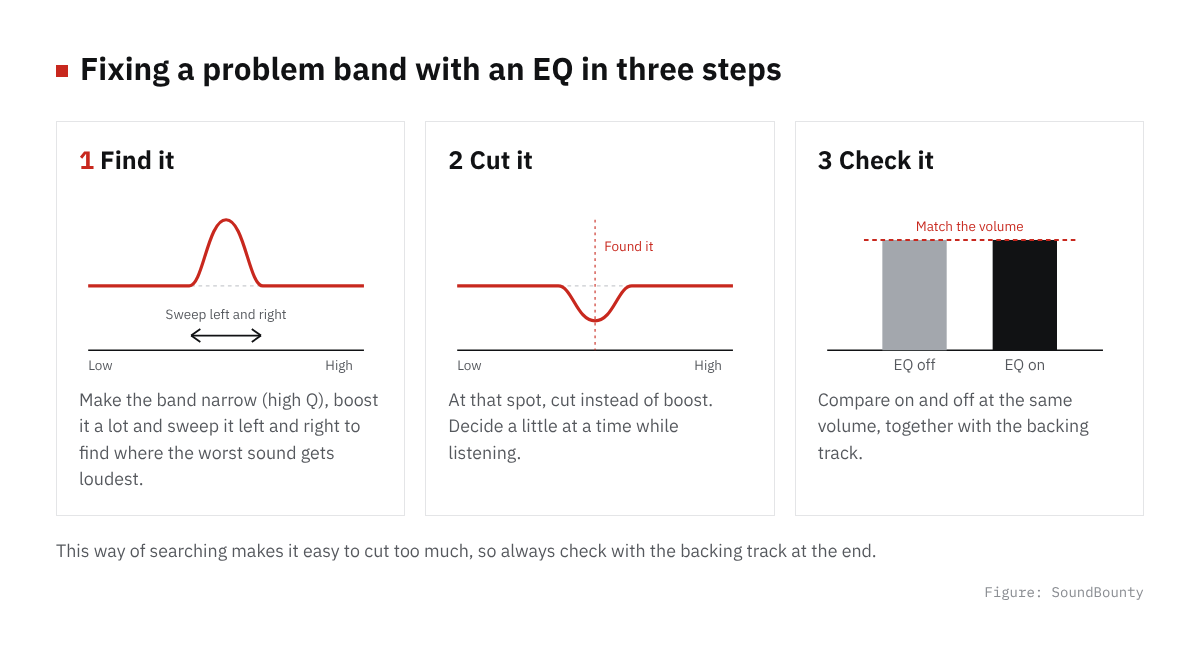
Figure: SoundBounty
This method is easy to follow, but it also makes it easy to cut too much, so always check with the backing track at the end.
Video: “Introduction to FabFilter Pro-Q 4” (official FabFilter YouTube channel; narration in English) Watch on YouTube
Tips to avoid overdoing it
- Do not decide with the vocal soloed: listening to the vocal alone makes you cut too much. Judge it together with the backing track.
- Compare at the same volume: an EQ also changes the volume. A louder sound tends to seem better, so compare on and off at the same volume.
- Cut wide, boost little: boosting too much tires the ear. Above 9 kHz, for example, even a small boost makes a difference.
- Use automatic suggestions: when you do not know where to cut, an EQ that listens to the sound with AI and makes suggestions is also handy.
Source: FabFilter Learn
Vocal EQ steps (summary)
- First, use a low-cut to remove low sounds the voice does not need (footsteps, air conditioners, vibration reaching the microphone and so on).
- Decide on one problem, such as muddiness or harshness, and find that band using the method above.
- Cut the band you found, only a little. If you feel you cut too much, put it back at once.
- If needed, finally add a little brightness and presence.
- Compare on and off at the same volume, and check together with the backing track.
The more you touch an EQ at once, the harder it is to judge the sound. Fix one or two problems per session, then rest your ears and listen again later to avoid overdoing it.
Frequently asked questions
Q. Should EQ or the compressor come first?
An EQ that cuts unwanted lows and muddiness is generally placed before the compressor.
Q. Can I cut sibilance with the EQ too?
If you cut it with an EQ, the highs also drop when no sibilance is present, and the voice tends to get dark. A de-esser, which reduces it only at the moment sibilance appears, suits better. FabFilter’s Pro-DS is also a dedicated tool that finds sibilance and reduces it.
Q. Is a free EQ good enough?
You can do the basic adjustments with a free EQ. We introduce EQs in our EQ plug-in comparison.
Q. Are there fixed frequency values for vocals?
The band that sounds muddy and the band that sounds harsh change with the pitch of the voice, the microphone and the room you recorded in, so manufacturers’ materials do not give fixed values for vocals either. Look for your problem band within the ranges in the table above.


Comments