
“I bought a plug-in, but it does not show up in OBS” is a common stumbling block in streaming. The cause is usually the plug-in’s format (VST2 or VST3). Based on primary sources such as OBS Studio’s official help, this article covers the plug-in formats OBS can use, how to use VST3 and Waves plug-ins, and what to check when a plug-in does not appear.
Disclosure: This article contains affiliate links. If you buy through them, SoundBounty may earn a commission at no extra cost to you.
In short: OBS supports only VST2
OBS Studio’s official help says that OBS can use VST 2.x plug-ins and does not support VST3, control by MIDI or shell-type plug-ins (checked September 27, 2026).
- VST2 plug-ins: work as they are in OBS’s “VST 2.x Plugin” filter.
- VST3-only plug-ins: do not work in OBS alone. Use one of the bridge plug-ins introduced below.
- Waves plug-ins: Waves is a “shell-type” format, so it does not work as it is, but Waves provides its own official method for OBS.
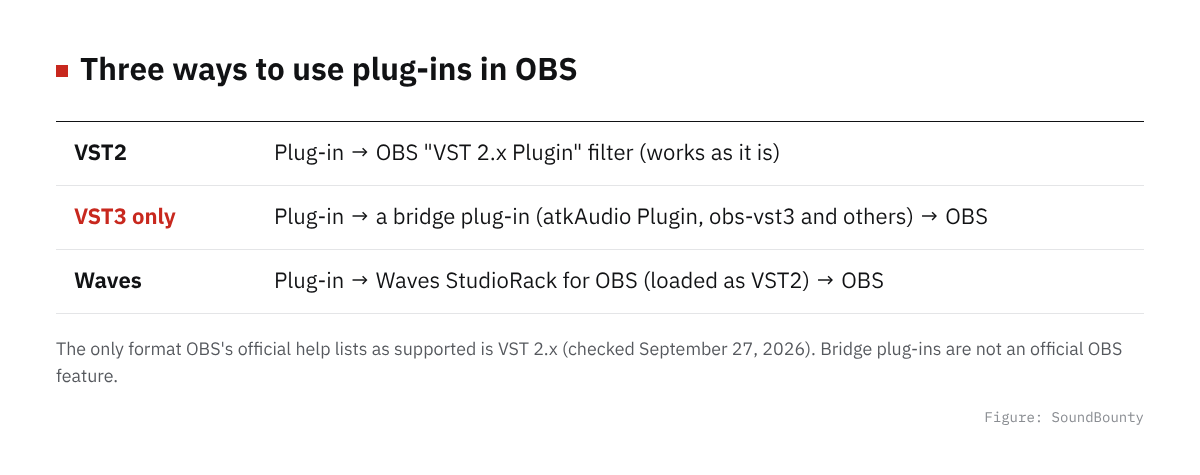
Figure: SoundBounty
VST3 support has been discussed for a long time on OBS’s developer board, but the OBS official help still says “VST 2.x only”.
Sources: OBS help (VST 2.x Plugin Filter), OBS developer discussion (VST3 support), Waves (using Waves plug-ins in OBS)
How to tell VST2 from VST3
Look at the “Formats” or “System Requirements” section of the plug-in maker’s product page. If “VST” and “VST3” are listed separately, as in “VST, VST3, AU, AAX”, then “VST” is VST2. If it says only “VST3, AU, AAX”, there is no VST2.
The comparison tables on SoundBounty (compressors, EQs, de-essers, limiters and noise reduction) have an “OBS (streaming)” column based on the manufacturers’ official listings. A circle means VST2 is listed, so the plug-in works in OBS as it is.
Steps to use a plug-in in OBS (VST2)
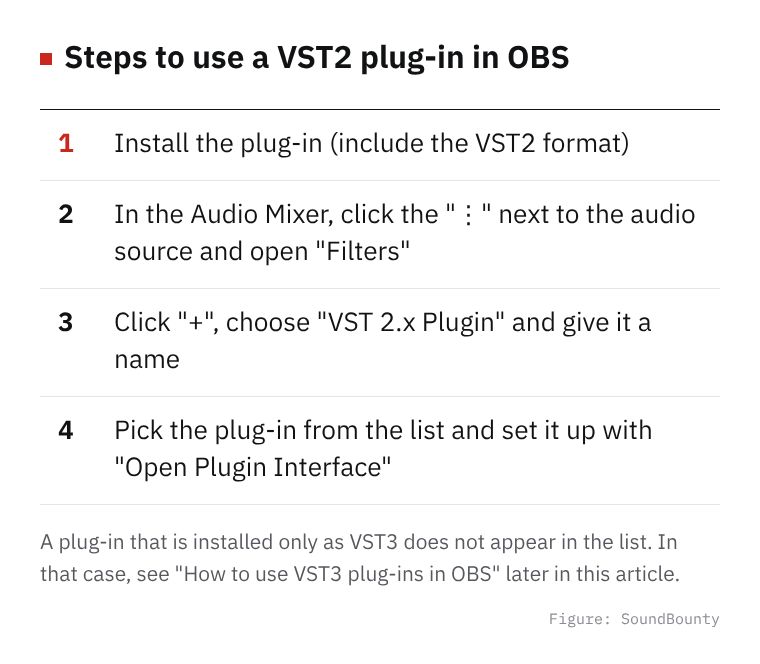
Figure: SoundBounty
- Install the plug-in (choose to install the VST2 format too).
- In OBS’s “Audio Mixer”, click the “⋮” (three dots) next to your microphone or other audio source and open “Filters”.
- Click “+”, choose “VST 2.x Plugin” and give it a name.
- Pick the plug-in from the list and set it up with “Open Plugin Interface”.
What to check when a plug-in does not appear
1. Only VST3 is installed
More and more plug-ins are distributed as VST3 only. Check the product page for VST2 (listed as “VST”), and if it is there, choose VST2 as well during installation.
2. VST2 is installed in the wrong place
OBS looks only inside certain folders. The main locations listed in OBS’s official help are:
- Windows:
C:\Program Files\VSTPlugins\,C:\Program Files\Common Files\VST2\,C:\Program Files\Common Files\VSTPlugins\,C:\Program Files\Steinberg\VstPlugins\and others - Mac:
/Library/Audio/Plug-Ins/VST/orLibrary/Audio/Plug-ins/VST/in your user folder
If a plug-in lets you choose where to install VST2 during setup, picking one of the folders above makes it easier to find.
3. Shell-type plug-ins (such as Waves)
“Shell-type” plug-ins, which bundle several plug-ins into one file, are listed as unsupported in OBS’s official help. For Waves, use the method below.
How to use VST3 plug-ins in OBS
To load VST3 in OBS, you use a bridge plug-in (a plug-in host) that you add to OBS. Neither of these is an official OBS feature; they are distributed by other developers. Read the download page before installing, and always test before you stream.
atkAudio Plugin (Windows, Mac and Linux, free)
According to its official page, this is a plug-in host that loads VST3 plug-ins inside OBS. It supports chaining several plug-ins, processing on several CPU cores and sidechain, and on Mac it can also load AU, and on Linux LV2. It is distributed free of charge.
obs-vst3 (Windows only, free and open source)
According to its download page, this is a plug-in that lets you use VST3 effects in OBS. It supports OBS Studio 29.1 or later on Windows (64-bit), and is described as running the VST3 plug-ins in a separate process from OBS, so that OBS is less likely to crash if a plug-in stops. It also has a “Rack” that chains several effects in order, a level meter and a loudness (LUFS) display.
How to use Waves plug-ins in OBS (Waves official)
Waves officially explains how to use its plug-ins in OBS (checked September 27, 2026).
- In Waves Central (Waves’ installer app), install “StudioVerse Audio Effects”.
- In OBS, add a “VST 2.x Plugin” filter and choose “Waves StudioRack for OBS”.
- In the StudioRack that opens, load the Waves plug-ins you want to use.
You need to have bought the Waves plug-ins or have a Waves subscription (Creative Access) (a trial is also available). On Mac, only Macs with an Intel processor are listed as supported, so people with an Apple silicon Mac should take care.
Try OBS’s built-in filters first
OBS has audio filters you can use without installing any plug-in. The ones listed in OBS’s official help are noise suppression, noise gate, compressor, limiter, expander, gain and phase inversion. For simple noise control or evening out the volume, these may be enough. When you want to shape the sound in more detail, adding a VST plug-in is a good next step.
Examples of plug-ins that work in OBS as they are (with VST2)
These are examples, among the plug-ins SoundBounty compares, of ones whose manufacturers officially list VST2. Scores and ranks are comparisons within each category.
To start for free
- TDR Nova (EQ): free. It can also be used to reduce only a specific band of the voice when it gets loud.
- MCompressor (compressor): free. Evens out differences in the volume of the voice.
- MEqualizer (EQ): free.
To reduce noise
- Clear: works in real time, and the official page says it is for streaming (5 points for “streaming and real-time” in our noise reduction comparison).
- Restoration Suite 2: you can use DeNoise, DeHum (hum removal) and more as plug-ins.
The noise reduction in iZotope RX 12 supports real-time processing with no delay, but its officially listed formats are VST3, AU and AAX, so to use it in OBS you need one of the bridge plug-ins above.
To make the voice easier to hear
- smart:comp 3 and smart:EQ 4 (sonible): AI suggests settings to suit the voice.
- Pro-Q 4 and Pro-C 3 (FabFilter): standard EQ and compressor.
- pure:deess and Pro-DS: de-essers that reduce harsh “s” sounds.
Where to buy
- smart:comp 3: View at Plugin Boutique
- smart:EQ 4: View at Plugin Boutique
- Pro-Q 4: View at Plugin Boutique
- Pro-C 3: View at Plugin Boutique
- pure:deess: View at Plugin Boutique
- Restoration Suite 2: View at Plugin Boutique
Frequently asked questions
Q. Do 32-bit and 64-bit versions matter?
Current OBS runs as 64-bit, so you need the 64-bit version of the plug-in. Choose the 64-bit version during installation.
Q. What if I bought a plug-in that has only VST3?
You can load it in OBS with one of the bridge plug-ins introduced above (atkAudio Plugin or obs-vst3). Neither is an official OBS feature, so check for audio dropouts and how OBS behaves before you stream.
Q. Will using a plug-in delay my voice?
Some plug-ins take time to process, and your voice may lag slightly behind the video. For plug-ins with a low-latency setting (modes such as “zero latency” or “real time”), it is safer to use that for streaming.


Comments