
The mix is finished and it is finally time to export. But the export screen has many unfamiliar items such as “bit depth”, “sample rate” and “dither”. This article sorts out what the export settings mean, based on the official manuals of DAWs (Ableton Live and Cubase).
Disclosure: This article contains affiliate links. If you buy through them, SoundBounty may earn a commission at no extra cost to you.
Key points
- The names and places of export settings differ by DAW, but the ideas are shared.
- For the file format, choose from the lossless WAV, AIFF and FLAC (in Ableton’s case).
- The Cubase manual explains that for sample rate, going below the project’s degrades the sound, and going above only makes the file bigger.
- Use dither only when you lower the bit depth, and apply it only once to a file.
- Normalize is a function that raises the volume with the loudest sound as the reference. It is different from how to even out volume (loudness).
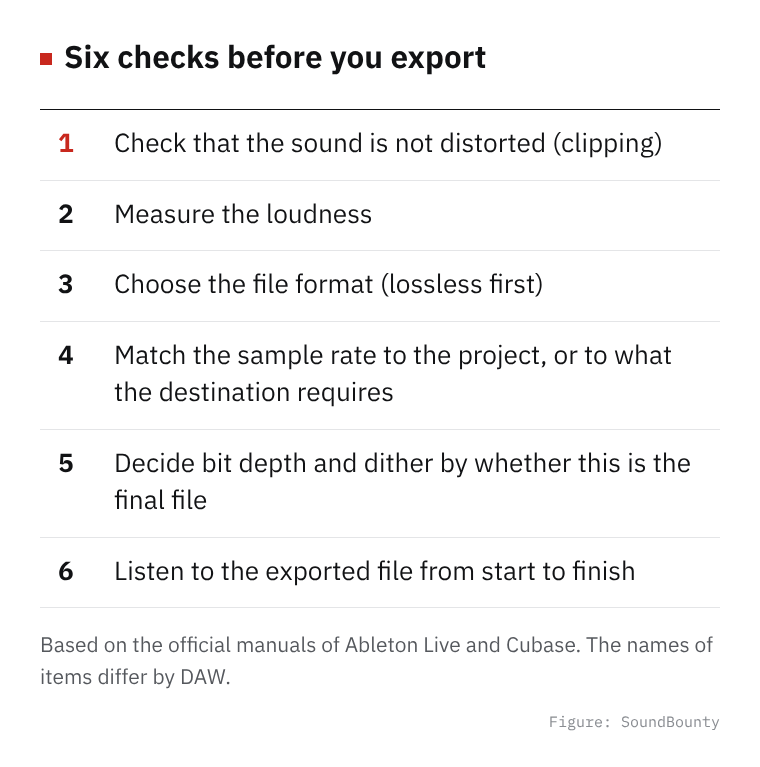
Figure: SoundBounty
What to check before you export
- Is the sound clipping?: some DAWs can update the meters during export so you can check for clipping (distortion). Cubase’s “Update Display” is explained as a function that updates the meters during export so you can check for clipping and more.
- The range to export: Ableton’s manual says that when an effect’s tail extends longer than the last clip, a normal export does not include that tail. Check that the final ring-out is included.
- What to include: in Ableton, when you export a single track, you can choose whether to include the send effects (returns) and the main effects. Check this when you export stems (an export part by part).
It is reassuring to measure the loudness before you export. See The basics of loudness for a cover song for how.
Sources: Ableton Live reference manual, Cubase Elements 11 operation manual
File format
In Ableton’s Export Audio/Video, you can choose three kinds of lossless PCM: WAV, AIFF and FLAC. You can also export a compressed, smaller MP3 at the same time.
Ableton’s manual has a note about MP3. The exported MP3 has a slight silence at the start, regardless of where the export begins. This can cause the position to drift when you hand the file to someone else or import it into another DAW, so in such cases it is explained that you should export a PCM file or cut the silence after exporting.
Source: Ableton Live reference manual (Encoding Options)
Sample rate
The sample rate is the number of times per second the sound is recorded. In export, whether it is the same as the project’s setting or not is the question.
- Lower than the project: the Cubase manual explains that for Wave and AIFF, a value lower than the project’s lowers sound quality and loses high frequencies.
- Higher than the project: the same manual explains that it only increases the file size and does not improve sound quality.
- For a CD: it says to choose 44.1 kHz, the sample rate of music CDs.
Ableton explains that if you choose a value lower than the project’s, it first exports at the project’s sample rate and then converts it with high-quality software (SoX Resampler).
Sources: Cubase Elements 11 operation manual, Ableton Live reference manual (Rendering Options)
Bit depth and dither
Bit depth is the number of steps at which loudness can be recorded finely. In Ableton you can choose from 16, 24 and 32.
You can choose dither (a process that adds a very small amount of noise) only when you export at a value smaller than 32 bits, such as 16 or 24 bits. Ableton’s manual explains the following.
- Dither is a process that adds a slight noise to the sound. The standard Triangular is the default because extra noise is less likely to appear even if you process further after exporting.
- Dither is a process you apply only once to a file.
- When you plan to process the exported file further, it is said to be good to export at 32 bits first and apply dither only on the final export.
- POW-r is said to be used only for the final export, not for files you hand to mastering.
In other words, you can think of it this way: a file that “someone else (or I) will process further later” is 32 bits, and the final file that is “finished” uses the bit depth and dither that suit its purpose.
Source: Ableton Live reference manual (Encoding Options)
What normalize is
Ableton’s “Normalize” is a function that raises the overall volume so that the loudest sound (peak) in the exported file reaches the maximum available level. The reference for raising the volume is the peak, which is separate from the loudness of how the whole song sounds. When you want to match a streaming service’s volume target, use a loudness meter to measure.
Source: Ableton Live reference manual (Rendering Options)
Order of checks for export (summary)
- Check that the sound is not distorted.
- Measure the loudness.
- Choose the file format (a lossless format first).
- Match the sample rate to the project, or to what the destination requires.
- Decide bit depth and dither by purpose (whether it is final).
- Listen to the exported file once more from start to finish.
Frequently asked questions
Q. What if the destination or client specifies something?
If the site you post to, or the client for mixing or mastering, specifies the format or sample rate, follow that specification first.
Q. Do I always have to apply dither?
When you export at 32 bits, you cannot choose dither. You can choose it only when you export at a bit depth smaller than 32. For a file you plan to process further, Ableton’s manual explains that it is good not to apply it until the final export.
Q. My DAW is not Ableton or Cubase
Even if the names and places of items differ, the ideas of sample rate, bit depth and dither are shared. Check the explanation of the export items in your own DAW’s manual.
Q. Are there fixed settings in numbers?
They change with the purpose and the destination, so we do not give fixed values.


Comments