
Before you release a cover song or your own track, you may wonder “is this volume okay?” This article explains, based on Spotify’s official help, the basics of “loudness”, the way volume is measured, how Spotify evens out volume and the tools for measuring it.
Disclosure: This article contains affiliate links. If you buy through them, SoundBounty may earn a commission at no extra cost to you. Prices are as of the date we checked them and can change.
Key points
- Loudness is the volume the human ear hears. Its unit is LUFS.
- Spotify adjusts the volume of a song to -14 LUFS when it plays it.
- Spotify turns down loud songs and turns up quiet ones. It does not change the song itself.
- It is reassuring to measure with a loudness meter before you release.
- Each video service treats volume differently. Check the destination’s explanation.
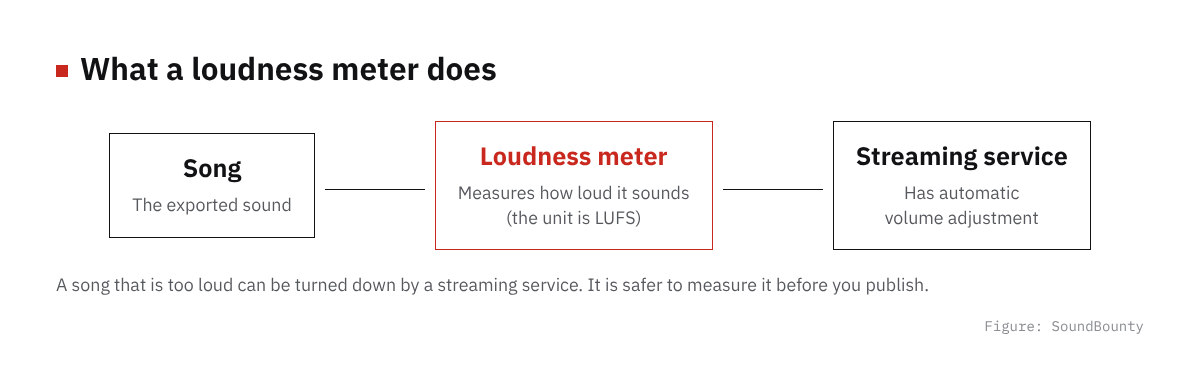
Figure: SoundBounty
Loudness and LUFS
The loudness of a sound measured by a machine and the loudness the human ear hears do not always match. Loudness is a way of measuring the volume the human ear hears. Its unit is “LUFS”.
The value that represents the average of the whole song is called “integrated”. The “-14 dB LUFS” in Spotify’s explanation also refers to this value for the whole song.
There is also “true peak”. It is a value that represents the height of the peaks of the sound waveform. It is used to check whether the sound will be clipped (distorted). Its unit is sometimes written “dBTP”.
Spotify evens out volume when it plays
Spotify evens out volume with “loudness normalization”, because songs of different volume are hard to listen to. The help says the following.
- Volume is set to -14 dB LUFS, based on an international standard (ITU 1770).
- The adjustment is made at playback. The uploaded song itself is not processed.
- Loud songs are turned down. No new distortion is added when this happens.
- Quiet songs are turned up. But headroom is left so that the sound does not clip.
- Premium users can choose the target in the app settings from -11 (Loud), -14 (Normal) and -19 (Quiet).
- Normalization is not used on the web player or on other companies’ devices such as TVs.
In other words, a song whose volume is raised too much is turned down on Spotify. Raising the volume to sound loud does not always pay off.
Source: Spotify official help
The guide Spotify recommends
Spotify’s help also gives guides for when you make a song.
- Set the loudness of the whole song to an integrated -14 dB LUFS.
- Keep the true peak at -1 dB or below. This avoids extra distortion when converting to a compressed format (Ogg Vorbis or AAC).
- For a song louder than -14 dB, keep the true peak at -2 dB or below. Loud songs are more likely to distort when converted.
This is Spotify’s explanation. Other streaming services and video sites may have different targets. Also check the destination’s explanation.
Source: Spotify official help
On YouTube
YouTube’s help introduces a feature called “stable volume”. It continuously adjusts the difference between loud and quiet sounds to reduce changes in volume. It is on by default when you watch videos.
The volume of a video also changes with how it is played. After you export, play it on the video site and check how it sounds.
Source: YouTube Help
The numbers you see on a loudness meter
The numbers a loudness meter shows differ by product. Many products show numbers like these.
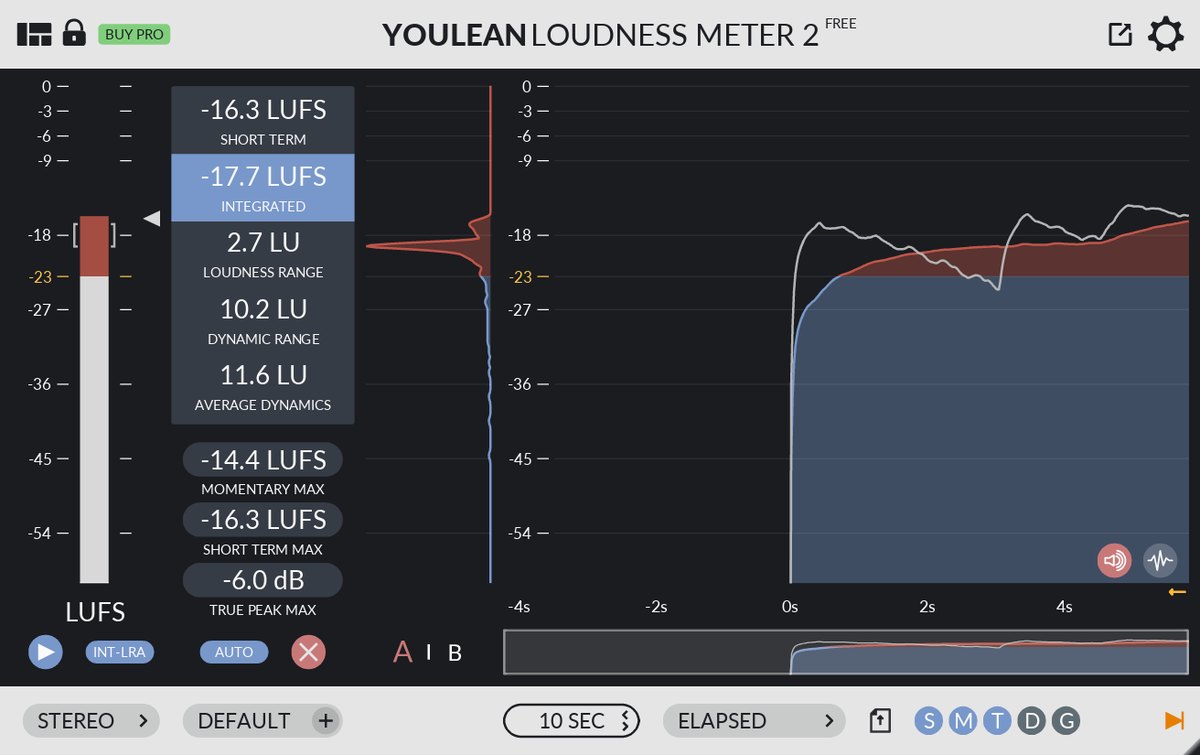
- Integrated: the average volume of the whole song. You look at it to compare with Spotify’s target.
- True peak: the height of the peaks of the sound. You look at it to check for distortion.
Which numbers you can see differs by product. You can check this in the “numbers you can measure” criterion on the comparison page.
Steps for measuring
- Run the song or mix through the loudness meter, in the state before you export.
- Look at the loudness of the whole song (integrated) and the true peak.
- If it is far from the destination’s guide, adjust it with a limiter or similar.
- After adjusting, measure again to check.
Limiters are compared in our limiter comparison. Decide by listening to how natural the sound is, not just the volume.
Choosing a loudness meter
Loudness meters are scored from official information in our loudness meter comparison.
To start for free
Youlean Loudness Meter measures the main numbers such as loudness and true peak even in its free version.
Score 4.0 / 5 (average of the 10 products compared: 3.6)→ See all
- Price
- Free
- Specs last checked
- 2026/09/25
- Streaming checks
- Streaming presets
- Measurable values
- All four
- Finding problems
- Dynamics
- Price (store, date)
- $39 (sale; regular $49) [Official, checked Oct 26]
Paid picks (from the lowest regular price)
The regular prices are in US dollars shown on Plugin Boutique on October 10, 2026.
- EXPOSE 2 (rank S, regular price $80): View at Plugin Boutique
- LEVELS (rank S, regular price $80): View at Plugin Boutique
- Insight 2 (rank A, regular price $199): View at Plugin Boutique
How to install and authorize a plug-in is explained in How to install plug-ins you bought in a sale or got as a free giveaway.
Frequently asked questions
Q. Is louder better?
Not necessarily. On Spotify, the volume of loud songs is turned down. Put avoiding distortion and ease of listening ahead of loudness.
Q. Do I have to match -14 LUFS exactly?
Spotify explains -14 LUFS as a guide. It adjusts at playback, so even if you are not exact, the song does not become unlistenable. Also value the mood of the song.
Q. What are the targets for YouTube and Niconico?
This article introduces only targets we could confirm in Spotify’s official help. Check each video service’s explanation for its targets.
Q. Do I measure the whole thing including the backing track, or just the vocal?
If you release it as a song or a video, measure the whole, backing track and vocal together, before exporting. Measuring only the vocal gives a different number from the volume you hear.
Q. Are there fixed settings in numbers?
Limiter settings and so on change with the song, so we do not give fixed values. Decide by measuring and listening.


Comments