
While you record your singing, does your own voice in the headphones sound slightly late? That delay is called “latency”. This article summarizes why the delay happens and how to fix it with buffer size and direct monitoring, based on official materials from Focusrite, an audio interface maker.
Disclosure: This article contains affiliate links. If you buy through them, SoundBounty may earn a commission at no extra cost to you.
Key points
- Latency is the delay between sending a signal and its arrival. In recording, it is the delay between your voice sounding and your hearing it in the headphones.
- The delay comes from the time the computer needs to process sound (the buffer). A smaller buffer reduces the delay, but the sound is more likely to drop out.
- Focusrite explains that you should make the buffer as small as possible when recording and can make it larger when mixing.
- Direct monitoring (a function that sends the sound from the interface straight to the headphones without going through the computer) can almost remove the delay.
- When you use direct monitoring, turn off monitoring of the track you are recording. If you do not, your voice sounds doubled.
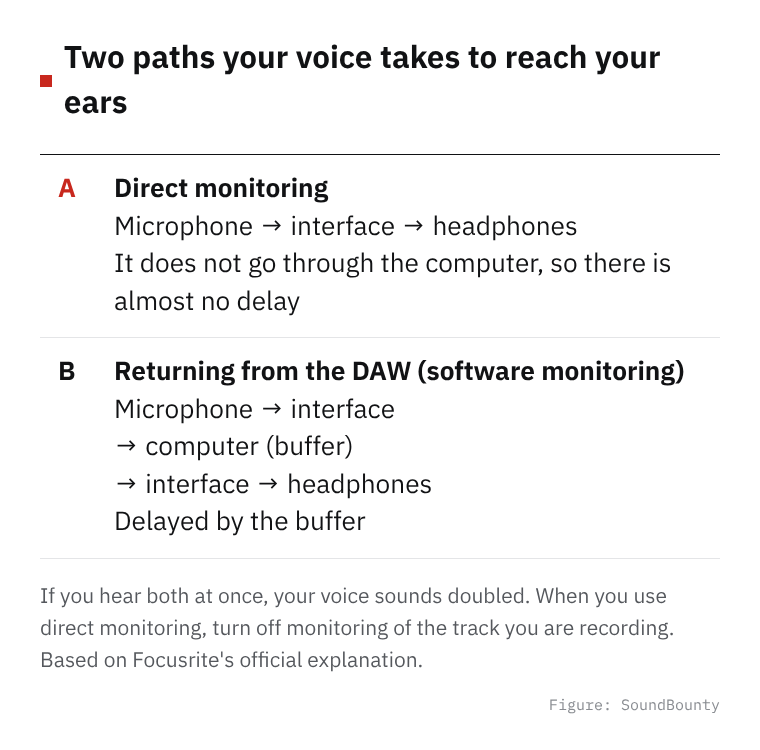
Figure: SoundBounty
What latency is
Focusrite explains latency as “the delay between the moment a signal is sent and the moment it arrives”. In recording, the smaller the delay, the sooner the response comes back, so it is easier to sing.
Delay is expressed in milliseconds (thousandths of a second). Focusrite also gives a familiar example. The sound of a speaker one meter away takes about 3.4 milliseconds to reach your ear.
Source: Focusrite official help (What is latency in audio?)
How the delay arises: buffer size
When you record, your voice goes from the microphone through the interface into the computer, then back to the interface and out of the headphones. Along the way, the computer needs time to process the sound. The time set aside for this processing is the “buffer size”.
- Make the buffer small: the delay gets smaller. But the computer has to process in a shorter time, so the load increases.
- Make the buffer large: the delay gets bigger. In exchange, the sound is stable.
If the buffer is too small, the computer’s processing cannot keep up, and the sound breaks up with “crackles” and “pops” or gets stretched. Focusrite lists this as a sign that the buffer is too small.
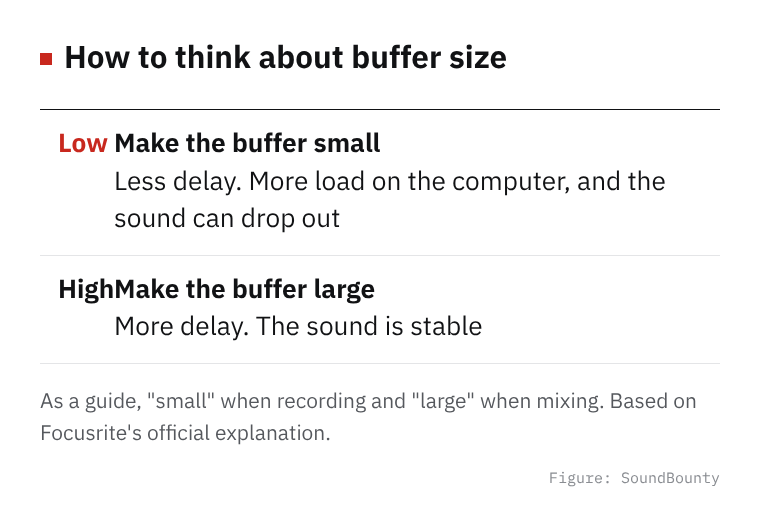
Figure: SoundBounty
Buffer size is set in the number of samples (for example 512 samples) or in milliseconds, depending on the interface. When it is set in samples, even the same 512 samples takes less time the higher the sample rate (the number of times per second it records). When it is set in milliseconds, it is adjusted so that you get the delay you set at any sample rate.
How to decide the buffer size
Focusrite does not recommend a specific number, because the right value changes with the number of tracks in the song, the number of plug-ins and the computer you use. It does give these guides.
- When recording: make the buffer as small as possible. If “crackles” or DAW errors appear, raise the buffer or reduce the number of effects and tracks.
- When mixing: you do not need to mind the delay, so you can make the buffer large. It also reduces dropouts when you add plug-ins.
- When listening to music outside the DAW: the delay does not matter, so a large setting is fine.
Focusrite explains that where you set it differs between Windows and Mac (for Focusrite interfaces).
- Windows: set it in the Focusrite Notifier (the taskbar icon) or in the audio control panel.
- Mac: set it in the DAW’s settings screen (the audio section).
With interfaces from other makers, the place can differ. In that case, see the manual of the interface and DAW you use.
Source: Focusrite official help
Removing the delay: direct monitoring
Even if you make the buffer small, the delay can still bother you. Direct monitoring is what you can use then. Focusrite explains it as “a function that lets you hear the interface’s input with almost no delay without going through the computer”. The input sound is sent to the headphones and at the same time to the DAW, where it is recorded.
- On the Scarlett Solo and Scarlett 2i2 and similar models, you turn it on with the “Direct Monitor” switch on the unit.
- On the Scarlett Solo (1st to 3rd Gen), Scarlett 2i2 (1st and 2nd Gen) and iTrack Solo, the direct monitoring sound is mono. The two inputs are heard in both ears. When you want to hear in stereo, Focusrite recommends monitoring back from the DAW.
- On models with dedicated software such as Focusrite Control, you assign a “Custom Mix”, which mixes the input and the DAW’s sound, to an output, and do the same thing. The backing track is heard together as the DAW’s sound.
The operation differs by model. See the manual of the interface you use.
Sources: Focusrite official help (What is latency in audio?, Scarlett 1st, 2nd and 3rd Gen Direct Monitor)
What to do when your voice sounds doubled
Even when you use direct monitoring, your voice can sound doubled (like an echo). Focusrite explains it like this.
- Cause: you are hearing both the voice directly from the interface and the same voice processed by the computer and arriving later.
- Fix 1: turn off monitoring of the track you are recording (mute it).
- Fix 2 (Windows only): if you hear delayed sound even when the DAW is not open, check whether “Listen to this device” in Windows’ sound settings is turned on. If it is on, delayed sound can be output.
Source: Focusrite official help (Latency while using Direct Monitor)
When it is still delayed after you set it
Even if you make the buffer small, the delay until it reaches your ear does not always equal the value you set. Focusrite explains that the following can also cause delay.
- Delay from software and some plug-ins
- Differences between computers. It also depends on the state of the computer and its load at the time
- Using a USB hub. Operation can become unstable and a larger buffer may be needed
When recording, one idea is to remove heavy plug-ins and connect the interface directly to the computer. For plug-in delay, there is also a way in the DAW of turning off effects only while recording.
Source: Focusrite official help (What is latency in audio?)
Order of fixes (summary)
- If you can use direct monitoring, turn it on. Turn off monitoring of the track you are recording
- If you cannot, make the buffer small and look for the smallest value at which the sound does not break up
- If it breaks up, raise the buffer or reduce plug-ins and tracks
- Remove the USB hub and connect the interface directly
- When mixing, set the buffer back to large
Frequently asked questions
Q. Does raising the sample rate reduce the delay?
When the buffer is set in samples, even the same number of samples takes less time the higher the sample rate (Focusrite’s explanation). But the load on the computer also increases, so check that it does not drop out. How to choose a sample rate is also touched on in Basic export settings for a cover song.
Q. Can I hear my voice with reverb through direct monitoring?
The direct monitoring sound is the voice before it goes through the computer. The DAW’s reverb is not applied. When you want to sing with reverb on your voice, use the method of monitoring back from the DAW.
Q. Is my recording going in later than it really was?
If the recorded voice is off from the backing track, you can sometimes fix it with the DAW’s settings (latency compensation). See your DAW’s manual. This article is limited to the delay you hear in the headphones.
Read next
- Basic steps for recording vocals at home
- How to set the recording input level
- How to choose an audio interface
- Audio interface comparison


Comments