
When you record a cover song, the input level (gain) is an important setting to decide first. Too low and the sound is thin; too high and it distorts. This article explains how to set the input level step by step, based on Shure’s official guide.
Disclosure: This article contains affiliate links. If you buy through them, SoundBounty may earn a commission at no extra cost to you. Check the price on the store page behind the buy button.
Key points
- The input level (gain) is the setting that decides how loudly the microphone’s sound goes into the recording.
- Too low and the recording sounds thin. Too high and the sound distorts (clips).
- A distorted recording cannot be fixed later. A quiet recording can be made louder later.
- Do a test recording at your loudest singing and set it to a level that stays out of the red indicator.
- While recording, use wired headphones.
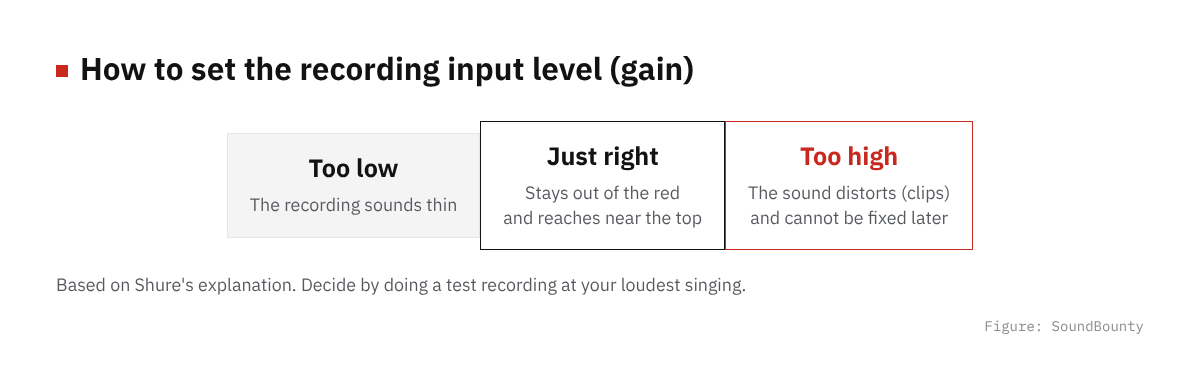
Figure: SoundBounty
What input level (gain) is
An audio interface has a knob that decides how loud the microphone’s sound is. This is the input level, or gain. Shure explains that the interface adjusts the volume (gain) from the microphone.
The microphone’s sound is small as it is, so you adjust it with the interface to a size that can be recorded on the computer. Turning the knob too far or not far enough both fail to give a good recording. The part that boosts the microphone’s signal is called a microphone preamp. See What is a microphone preamp? for details.
Source: Shure official
What happens when it is too low or too high
Shure explains it like this.
- If the level is too low, the recording sounds thin.
- If the level is too high, unwanted distortion (clipping) gets in.
It also says that a quiet recording can be made louder later, but a distorted recording cannot be fixed. When in doubt, keeping it a little low is safe.
However, if the sound is too quiet, noise becomes more noticeable when you raise it in the mix. The causes of noise and the fixes are explained in Causes and fixes for noise in a cover-song recording.
Source: Shure official
Steps for setting it
- Connect the microphone and headphones: use headphones that connect by cable.
- Set the knob low: at first, start from a small amount.
- Do a test recording at your loudest singing: sing at the loudest voice you will use in the real take (such as the chorus).
- Watch the meter: set the knob so the level reaches near the top and does not go into the red indicator.
- Listen back: check that it is not distorted and not too thin.
Shure recommends doing a test recording at the same loudness as the real take and setting it at that level. The guide is that the recording level reaches near the top and never goes into the red at the peak.
This article does not give fixed numbers (dB). Follow the interface’s display and manual.
Source: Shure official
Auto gain (a function that sets it automatically)
Some models have a function where the machine sets the input level automatically. In Shure’s home recording guide, Focusrite’s Scarlett 2i2 is introduced as setting the level automatically with “Auto Gain”. Shure’s “MVX2U” microphone interface is also said to have a mode that sets the level automatically.
Even after it sets automatically, listen back and check that it is not distorted.
Score 3.2 / 5 (average of the 23 models compared: 3.4)→ See all
- Specs last checked
- 2026/10/19
- Inputs
- 2ch
- Hi-Z inputs
- 2
- Loopback
- ●
- EIN
- -127dBu
- Price (store, date)
- Not disclosed
How to choose an audio interface is explained in How to choose an audio interface for home recording by budget and our audio interface comparison.
Sources: Shure official, Focusrite official
Headphones while recording
Shure recommends not using wireless headphones for recording, because Bluetooth can introduce a slight delay (latency). It recommends wired, over-ear headphones.
How to choose monitor headphones is explained in How to choose monitor headphones for DTM and home recording.
Source: Shure official
After you set the input level
- Keep the distance to the microphone constant while you sing. If the distance changes, the volume changes too. See Microphone distance and pop filters for cover songs.
- Use a pop filter to reduce the breath noise of “p” sounds.
- After recording, look at the waveform and check that it is not distorted.
The whole recording flow is summarized in Basic steps for recording vocals at home.
Frequently asked questions
Q. What should I watch out for when I use a condenser microphone?
A condenser microphone needs power sent from outside. This power is called phantom power (48 V). Focusrite’s Scarlett 2i2 4th Gen has a 48 V button. Before you connect, check that the interface you use supports phantom power. See USB microphone vs XLR microphone plus interface for details.
Q. Is it a problem if I record on the quiet side?
Even if the recording is quiet, you can raise it later. A distorted recording cannot be fixed. But if it is too quiet, noise also becomes more noticeable, so look for a moderate level.
Q. What if the red indicator lights for just a moment?
Shure gives never going into the red as the tip. If it lights, lower the knob a little and do a test recording again.
Q. If I have auto gain, do I not need to adjust it myself?
Even when it sets automatically, it is more reassuring to listen back and check. When you change how you sing or the distance, set it again.
Q. Do I need to set it again if I change how I sing?
Yes. If the loudness of your voice or the distance to the microphone changes, the recording level changes too. For a song where the voice gets loud in the chorus, do a test recording in the chorus and decide.
Q. Are there fixed settings in numbers?
They change with the microphone, the voice and the interface, so we do not give fixed values. Decide with a test recording.


Comments