
Have you listened back to a cover-song recording and found a low “hum” or a “hiss” in it? The cause of noise differs by how it sounds. If you first tell “what kind of noise it is”, you find the fix sooner. This article sorts the noise that easily gets into recordings into five kinds and explains the causes and fixes.
Disclosure: This article contains affiliate links. If you buy through them, SoundBounty may earn a commission at no extra cost to you. Prices are as of the date we checked them and can change.
Key points
- The first thing to do is to check how the noise sounds and try the “first thing to try” in the table in order.
- A “hum” is hum noise. Start by changing the USB cable and by isolating equipment one piece at a time.
- A “hiss” stands out when the input gain is too low and you raised the volume afterward. Set the gain within the range where it does not clip.
- A “puff” can be reduced with a pop filter, and a “thump” with a microphone arm.
- After recording, you can reduce noise with an EQ low-cut or noise reduction software. But take care not to overdo it.
First, tell the kind of noise apart
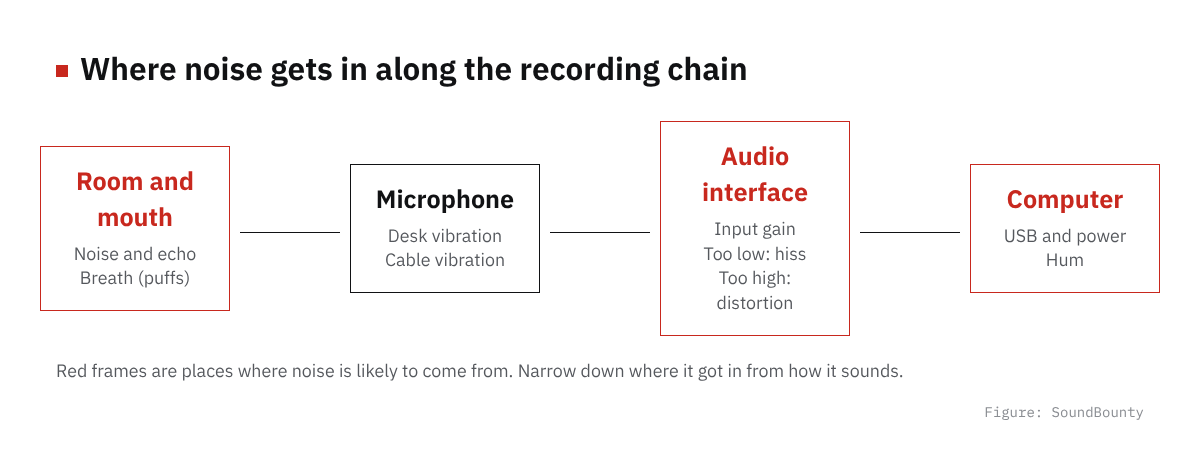
Figure: SoundBounty
| How it sounds | Main cause | First thing to try |
|---|---|---|
| A low “hum” all the time | Power and grounding, USB power | Another USB cable, unplugging and replugging the computer’s power, disconnecting equipment one piece at a time |
| A “hiss”, even when you are not singing | Low input gain with the volume raised afterward, or room noise | Set the input gain properly and reduce how much you raise it after recording |
| A “puff” of breath hitting | Breath hitting the microphone directly (pop noise) | A pop filter, the distance from the microphone |
| “Thumps” and “knocks” of objects | Vibration from the desk or the cable | A microphone arm, a shock mount |
| Air conditioner, outside sound or room echo gets in | The microphone is picking up too much room sound | A unidirectional microphone, getting close to your mouth, stopping the noise source |
1. A “hum” (hum noise)
A low, steady “hum” is called hum noise. You can hear it from the monitors or it gets into the recording. One cause is a grounding problem.
Grounding problems fall into two. One is when the reference ground is lacking. The other is when several paths connect to different grounds and form a loop. The latter is called a ground loop. Either causes electrical interference and unwanted current.
The cause can be in the computer, the building’s wiring or the equipment you connected. Isolate it in this order.
- Change the place or the computer: try another place or another computer. It does not fix it, but you can narrow down whether the cause is the building or the computer.
- Unplug the laptop’s power: if the noise stops when you unplug the cable, it is not a part inside the computer. The power supply or the building’s wiring is thought to be the cause.
- Change the USB cable: a fault in the cable’s shielding can produce noise. Try another cable.
- Check how it is powered: models connected only by a USB cable (bus-powered) take power from the computer, so they are explained as the most affected by noise. Trying a USB hub with an AC adapter is also a method.
- Disconnect equipment one piece at a time: when several pieces of equipment are connected, remove them one at a time and look for the one that stops the noise.
- Use a balanced connection to the monitors: using balanced cables lowers the chance of hearing hum. It becomes a balanced connection only when the monitor side also has a balanced input.
A dynamic microphone can produce hum depending on its direction near power lines. If the hum changes when you change the direction, try changing where you place it.
Sources: Focusrite support (causes of hum and noise and fixes), Shure (how microphones pick up hum)
2. A “hiss” (white noise) and input gain
A “hiss” you can hear even when you are not singing can be related to the input gain setting. If the input gain is too low, the signal is too small. When you raise the volume afterward, the recording’s noise becomes noticeable. Conversely, if it is too high, the input clips (is pushed past its limit) and a rough distortion gets in.
You set the gain while watching the interface’s display. On the Scarlett 2i2, the ring around the gain (Gain Halo) is good when green, just before clipping when orange, and clipping when red. If red appears, lower the gain.
The idea is the same for other interfaces. At the loudest part of the song, set the volume to a level where red does not appear and it is not too small. Check the display for each model in the manual.
Source: Focusrite user guide (Scarlett 2i2)
3. A “puff” (pop noise)
When breath hits the microphone on “p” and “b” sounds, a low “puff” gets in. Putting on a pop filter reduces the noise caused by breath.
A pop filter has another role. Even if you leave about a fist’s width between you and the microphone, breath can still get in with a sensitive microphone. A pop filter also gives you a guide for where to put your mouth.
For distance, Shure gives 10 to 20 cm (4 to 8 inches) as a starting point. But with a unidirectional microphone, take care of the proximity effect, where the lows get stronger the closer you get.
Sources: Audio-Technica (what a pop filter is), Shure (vocal recording basics)
4. Vibration of the desk and cables
If you put the microphone directly on a desk, the vibration of the desk easily gets in as noise. Lifting the microphone with a microphone arm makes vibration less likely to be passed on.
Condenser microphones are highly sensitive, so they also pick up small vibrations. Compared with dynamic microphones, noise measures matter more. Using a shock mount as well is even more effective.
Fixing the cable to the arm also reduces vibration from the cable. If the sounds of typing and the mouse get in, try putting the microphone further from the desk.
Source: Audio-Technica (microphone arms and vibration noise)
5. Room noise and echo
When you record at home, air conditioners, everyday sounds and room echo get in more easily than in a studio. Audio-Technica explains that in home recording the microphone picks up too much sound and extra everyday and environmental sound gets in. As a measure, it introduces a unidirectional microphone, which is sensitive to sound from the front and picks up little from behind.
Shure also explains that unidirectional (cardioid) microphones are often chosen for recording vocals. A condenser microphone is highly sensitive and picks up the reflections of the room in addition to the direct voice. Unless the room is specially designed, you cannot expect those reflections to improve the recording much.
- Stop sounds you can stop, such as the air conditioner, refrigerator and computer fans, only during the recording.
- Face the microphone so the noise source (a window or air conditioner) is behind it. A unidirectional microphone picks up little from behind.
- If the microphone is far away, you have to raise the gain, and the noise goes up with it. Get close to your mouth.
- How to reduce room echo is explained in A guide to acoustic treatment for home recording.
Sources: Audio-Technica (troubles and solutions in recording cover songs), Shure (vocal recording basics)
Tools for noise measures (examples)
These are examples of tools that reduce breath noise and vibration noise. Audio-Technica’s materials introduce the AT-PF2 pop filter and the AT8700J microphone arm. Before you buy, check on the official page whether they suit your microphone (screw size and load).
What you can do after recording
Noise you could not prevent at recording can sometimes be reduced afterward.
- Low-cut: low-pitched noise such as the low sound of an air conditioner and desk vibration can be reduced with an EQ low-cut. The method is explained in How to EQ vocals.
- Noise reduction software: there is software that reduces hiss and room echo. We compare them with official information in our noise reduction and audio repair comparison.
The paid software with the highest score in our noise reduction comparison is “iZotope RX 12 Advanced” (rank S, average 4.8 out of 5; regular price $1,399 on Plugin Boutique on October 10, 2026). It sometimes gets cheaper in a sale, so check Plugin Boutique’s display before you buy.
Score 4.8 / 5 (average of the 13 products compared: 2.9)→ See all
- Specs last checked
- 2026/09/25
- Noise control for vocal recordings
- Down to lip noise and breaths
- Sound separation
- Down to separating scenes
- Speed
- Also matches ambience and EQ
- Price (store, date)
- $1,399 [PB, checked Oct 26]
However, if you overdo noise reduction, the voice gets muffled and unnatural. Noise you can reduce at the recording stage is better reduced there, for a more natural finish.
Order of checks (summary)
- Check how the noise sounds (the table above).
- Stop the sounds you can stop. Tidy the microphone direction and distance.
- Set the input gain within the range where it does not clip.
- Reduce breath and vibration with a pop filter, a microphone arm and a shock mount.
- If a “hum” remains, isolate the USB cable, the power and the equipment one at a time.
- For what still remains, reduce it with an EQ low-cut or noise reduction software.
Frequently asked questions
Q. Is noise different between condenser and dynamic microphones?
Yes. A condenser microphone is highly sensitive, so it easily picks up room reflections and small vibrations. Audio-Technica explains that a dynamic microphone needs fewer noise measures, but it is still affected by hum. The difference is explained in Dynamic vs condenser microphones.
Q. Will switching to an expensive microphone reduce noise?
Changing the microphone alone often does not solve it. The causes of noise also include the room, the distance, the gain and the power, not just the microphone. Microphones are compared in our microphone comparison, and interfaces in our audio interface comparison.
Q. I want to know the recording steps from the beginning
Basic steps for recording vocals at home explains from preparation to recording.
Q. Are there fixed settings in numbers?
The meters and displays differ by equipment, so we do not give fixed values. Set it within the range where clipping (red) does not appear on the interface’s meter. The manual also has a guide for each model.


Comments