
Disclosure: This page may contain affiliate links. Prices were checked on the date shown and may change.
An introduction to Newfangled Audio EQuivocate, based on information from the maker and distributors: what it does, how to use it and who it may suit. It is not scored.
Perfect for mixing and mastering, EQuivocate's auditory filters and match EQ functionality make it incredibly powerful, simple to use, and natural sounding.
— Newfangled Audio official site
What is EQuivocate?
EQuivocate is an EQ plugin from Newfangled Audio. It uses filters modeled on how the human ear hears, and it is aimed at tone shaping in mixing and mastering.
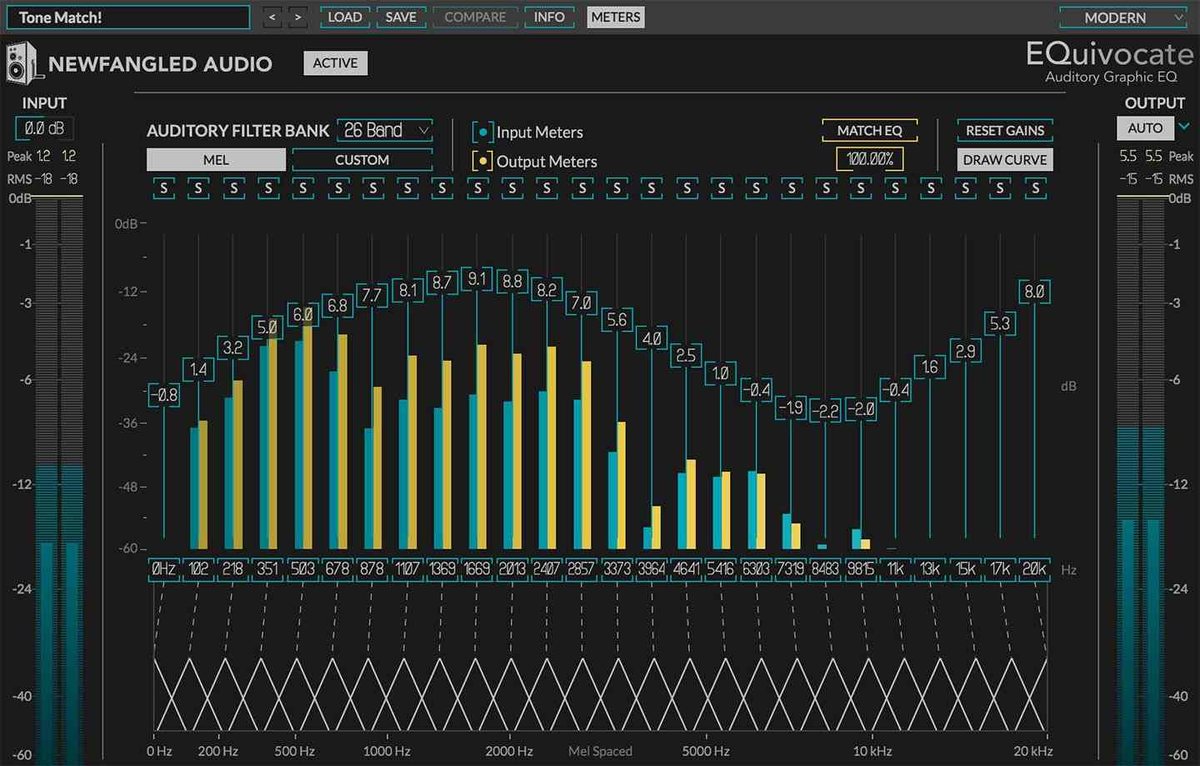
Its 26 bands follow the critical bands of the inner ear and are laid out along the Mel scale, a frequency scale that approximates hearing. The maker explains that adding more bands would not help much, because the ear would average them together.
The filters are linear-phase FIR (finite impulse response) types, designed to reduce pre-echo. The maker presents this as a difference from typical EQs whose filter shapes change with neighboring bands, so that what is drawn on screen matches what is heard.
The second main feature is Match EQ. It can shape the processed signal toward the tone of the audio fed to the sidechain, or move it in a direction that helps two sounds separate. Matching a final master to a reference track is also listed as a use case.
Key features
Auditory filters
26 triangular filters sit along the Mel scale, close to how the ear divides frequencies. The design aims for natural results even when several bands move together, and bands can be added, removed or re-tuned.
Linear-phase FIR
The maker says the response stays flat when all bands are flat and that neighboring bands interact less. The shape is designed to reduce pre-echo, which suits fine adjustments on mixes and masters.
Match EQ
The tone of the sidechain signal can be used as a target for the processed signal. Listed uses include blending two tracks, helping them complement each other, and bringing a master toward a reference track.
Draw curve and auto level
Dragging across the gain sliders draws an EQ curve, and turning Draw Curve off lets you fine-tune afterward. The output Auto button compensates for level changes introduced by the EQ.
Per-band solo
The output of one or more bands can be soloed, which helps when searching for a problem frequency.
Presets and compare
Artist presets from Richard Devine, Jeremy Lubsey, Alex Saltz, Sebastian Arocha Morton, Richard X and John McCaig are included. A Compare button switches between two settings.
Specifications
| Item | Details |
|---|---|
| Type | EQ (26 linear-phase auditory bands, with Match EQ) |
| Formats | AAX / VST2 / VST3 (Windows); AAX / AU / VST2 / VST3 (Mac) |
| Operating systems | Windows 8 or later (64-bit, Windows 11 supported); macOS 10.9 or later (Intel / Apple Silicon, 64-bit) |
| Authorization | Free iLok account/Manager required (no iLok dongle) |
| Trial | 14 days (as shown by the maker) |
What is included and system requirements
- EQuivocate plugin (perpetual license)
- 67 professional presets, as listed on the maker's page
- Artist presets from Richard Devine, Jeremy Lubsey, Alex Saltz, Sebastian Arocha Morton, Richard X and John McCaig
- Formats: AAX / AU / VST2 / VST3, 64-bit only
How to use it
- Download the installer from the Newfangled Audio website and install it.
- Create a free iLok account and activate the license in iLok Manager.
- Insert EQuivocate on the track or bus in your DAW.
- Load a preset first and listen to what changes.
- Solo a band to find the area you care about, then move its gain.
- For Match EQ, route the reference track to the sidechain input.
- Use the Auto button to compensate for level and the Compare button to check against the earlier setting.
Where it may come in handy
Blending sounds in a mix
It may be useful when you adjust an instrument or vocal while comparing it with another track in a similar range. Match EQ may give you a starting point for narrowing tonal gaps between tracks.
Matching a master's tone
Feeding a reference track to the sidechain may help you compare the tonal tendency of a master before finishing. Band solos can help find where the differences are.
Cleaning up home recordings
It may suit locating and tidying a troublesome range in a home-recorded voice or acoustic instrument by soloing individual bands.
Who it may suit
- People who want to think about EQ in units close to how the ear hears
- People who want to compare or match tone against a reference track
- People who like quick, graphic-EQ-style control
Good to know before you buy
- A free iLok account is needed for authorization (no dongle).
- As is common with linear-phase processing, latency may be introduced depending on settings, so it is aimed at mixing and mastering rather than live tracking.
- The maker's site also lists a mastering bundle that includes EQuivocate.
How it differs from similar products
We do not pick a winner; the official figures are placed side by side.
Newfangled Audio Punctuate / Elevate Mastering Bundle
EQuivocate is sold on its own, and the maker's site lists the Elevate Mastering Bundle (Elevate Mastering Limiter, Saturate, EQuivocate and Punctuate) separately. The maker shows the plugin at 99 USD and the bundle at 199 USD.
Price
$99 (Newfangled Audio official site, checked 2026-10-27). Prices can vary by region and promotion, so check the official page before buying.
See EQuivocate on the product page
More of the same kind
We have introduced 122 EQs. Here are some of the others.
- Antelope Audio Antelope Audio Filtek Mk3
- Tokyo Dawn Labs TDR SlickEQ M
- United Plugins FireEQ
- Waves RS56 Passive Equalizer
- Waves Linear Phase EQ
- Antelope Audio Blonder Tongue Audio Baton
We have introduced 1 other product from Newfangled Audio.
For a side-by-side comparison scored on the same criteria, see our comparison of EQs.
See the full list in Product database: Effects.
Sources: newfangledaudio.com pluginboutique.com (checked 2026-10-27)




Comments