
A plug-in you bought in a Plugin Boutique sale, or got as a free gift with a purchase, cannot be used just because you bought it. You download it, install it, activate it (register the license), and only then can you play it in your DAW. This article explains that flow in order.
Disclosure: This article contains affiliate links. If you buy through them, SoundBounty may earn a commission at no extra cost to you. Steps and screen names can change with updates from Plugin Boutique and the makers.
Key points
- The steps are three: download, activate and use in your DAW.
- The activation method differs by product. The main ones are a serial number, the maker’s account and iLok.
- You can see the steps for each product under “Installation Instructions” in your library.
- A free gift is chosen from “Show Gifts” in the cart when you buy a paid product.
- If it does not show up in your DAW, try in this order: check compatibility, reinstall, restart and rescan.
The whole flow
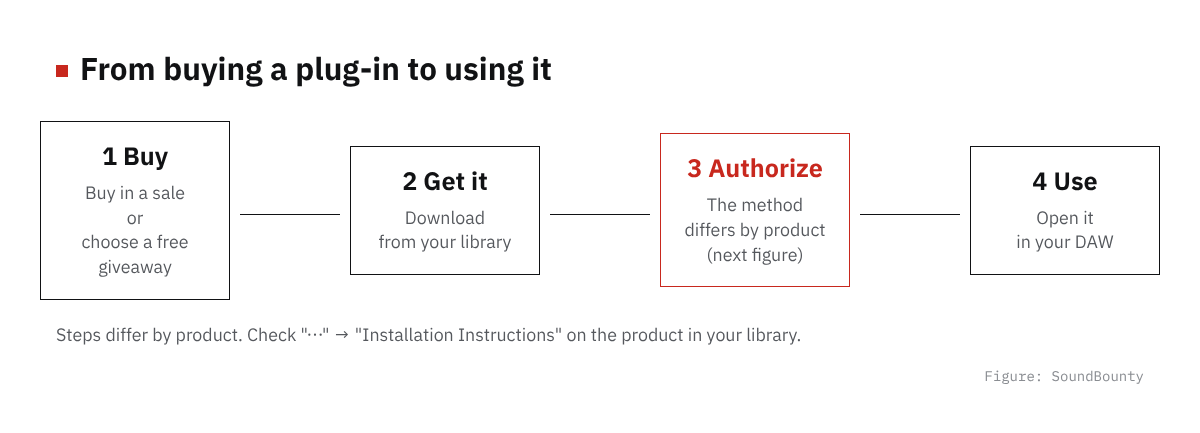
Figure: SoundBounty
- Buy (or choose a free gift): place the order with your Plugin Boutique account.
- Download from your library: products arrive as downloads. The download links are in the “Products” section of your account.
- Install and activate: the activation method differs by product (explained in “Three ways to activate” below).
- Use it in your DAW: open your DAW and launch the plug-in.
What arrives is the installer file and, depending on the product, one of a serial number, an unlock code or a key file. It can take a few minutes to prepare the installer and serial number, and in that case a message appears in your account.
Source: Plugin Boutique help
How to find the steps for your product
The steps differ by product, so the sure way is to look at the steps Plugin Boutique provides. You can open them in either of these ways.
- From your account: log in and open “Library” at the top left. Click the “…” (three dots) on a product and choose “Installation Instructions”.
- From the product page: scroll down the product page, and there is a collapsible section containing the steps.
If you downloaded the Windows version or the Mac version by mistake, choose the Windows or Mac icon again in the library and then press “Download”. Some products exist for only one OS.
Three ways to activate
Activation methods fall into three broad kinds. Based on Plugin Boutique’s pages of steps by maker, here are some makers as examples.
| Method | How do you activate? | Examples (makers) |
|---|---|---|
| Enter a serial number in the plug-in | After installing, open the plug-in in your DAW and enter the serial number (license key). | Excite Audio, Baby Audio, sonible, Future Audio Workshop (SubLab) |
| Register with the maker’s account and install with its dedicated app | Create an account on the maker’s site and register the code from your Plugin Boutique account. Then install the product with the maker’s app or installer. | UJAM (UJAM App), Roland (Roland Cloud Manager), XLN Audio (XLN Online Installer), Softube (Softube Central), Lunacy, Minimal Audio, W. A. Production, u-he |
| Activate with iLok | Create a free iLok account, put the license in that account and activate it to the computer (or to an iLok USB key). | Eventide, Softube, Sonnox, Universal Audio (through UA Connect), Heritage Audio |
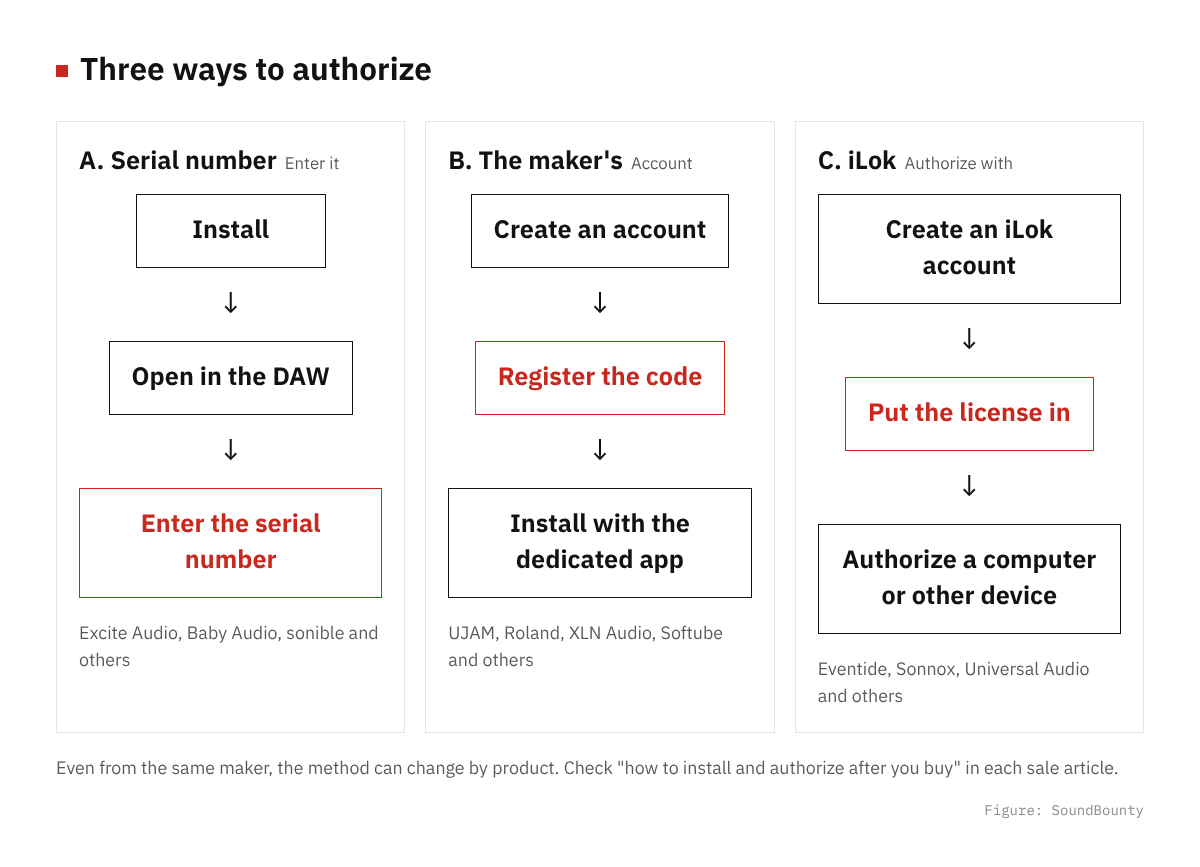
Figure: SoundBounty
The flow specific to each maker (what to install, where and in what order) is summarized in “how to install and authorize after you buy” in each sale article. For example, Roland JUNO-60 needs a Roland Cloud account, and Eventide Blackhole needs an iLok account.
It is easier to create an iLok account first
iLok is a mechanism for managing plug-in licenses. You create a free account and install an app called “iLok License Manager”. Some products, like Eventide’s, need no USB key (dongle) and can be activated with just a free iLok account. The differences between a USB key, computer activation and iLok Cloud are summarized in What is iLok?
Source: Plugin Boutique help
How to claim a free gift
At Plugin Boutique, you can sometimes choose a free gift (a product offered as a bonus at the time) when you buy. This is how to claim it.
- Have a Plugin Boutique account (create one if you do not).
- Put a paid product in the cart. Free products do not qualify.
- Click “Show Gifts” next to the cart and choose a gift. Do not put the gift product itself in the cart (the same product appears on the checkout screen).
- Complete the payment.
Please note the following.
- You get one gift per order. If there are several, you can split the orders and claim one at a time.
- As the order total goes up, more gifts may become available. You can check it on the cart progress display.
- A product you already own cannot be received as another license, and cannot be swapped for another product.
- If a coupon brings the total below the required amount, the gift is removed from the cart.
- If you pay the whole order with a coupon or Virtual Cash, it does not qualify for the gift.
- Orders paid in installments (Rent To Own) also do not qualify for the gift.
- A gift product cannot be exchanged for another product or resold.
If the gift does not arrive, check that you do not fall under the conditions above. A gift product you received also needs activation per product, just like one you bought. You can check how to install it in “How to find the steps for your product” above.
Source: Plugin Boutique help
When a plug-in does not show up in your DAW
When a plug-in you installed does not show up in your DAW, check in this order from Plugin Boutique’s help.
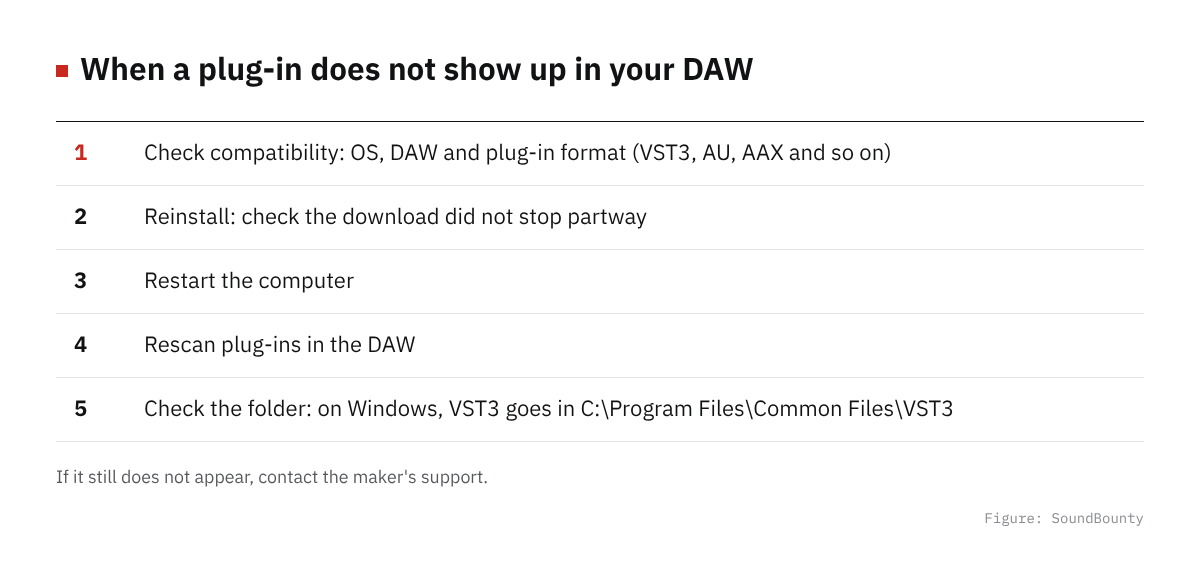
Figure: SoundBounty
- Check compatibility: confirm in the product page’s system requirements that the product you bought supports your OS and DAW. The plug-in format (VST3, AU, AAX and so on) must match the format your DAW uses.
- Reinstall: the download may have stopped partway and not been installed properly. Download it again and reinstall. Using a download manager makes it more stable.
- Restart the computer: restart after reinstalling. Replacing files may not complete because they are in use.
- Rescan plug-ins in your DAW: open your DAW after restarting, and if it still does not appear, rescan plug-ins.
- Look at the folder it is in: check that the plug-in is in the designated folder. On Windows, VST3 goes in
C:\Program Files\Common Files\VST3.
If you still cannot find it, contact the support of the maker that made the product.
Common stumbling blocks
On a Mac, “unidentified developer” appears and you cannot install
Plugin Boutique’s help guides you to the Mac “Security & Privacy” settings. It is a procedure to set the range of apps you allow to install to “App Store and identified developers”. The names and places of settings change with the macOS version, so look for them according to what is on your screen.
You cannot reinstall or reactivate
The activation method may have changed since you first installed. Check the installation steps again in your library. A product update may also be out, so look at “My Updates” in your account too. When you install an update by hand, choose the latest update and the format for your OS in the products section of your account, and then download it.
The serial number does not work
Copy and paste the serial number so that no spaces get in before or after it. On a maker’s site, Plugin Boutique’s “license key” is sometimes called a “serial number”. If it still does not work, contact Plugin Boutique’s customer care.
Frequently asked questions
Q. Can I download right after buying?
Products arrive only as downloads. It can take a few minutes to prepare the installer and serial number, and in that case a message appears in your account. If it does not appear in your account, contact Plugin Boutique’s customer care.
Q. I am uneasy about buying at an overseas store
The differences in payment, exchange rates, license management and support are summarized in Buying plug-ins from Japan.
Q. What sales are on now?
You can find the current sales and free giveaways on our latest sales.
Source: Plugin Boutique help
Summary
You install a plug-in you got in a sale or as a free gift in this order: (1) download from your library, (2) activate by the product’s method (a serial number, the maker’s account and app, or iLok), (3) use it in your DAW. You can check the differences by product in “Installation Instructions” in your library and in “how to install and authorize after you buy” in each sale article. If it does not show up in your DAW, try in the order of checking compatibility, reinstalling, restarting and rescanning.


Comments