
When you listen back after recording your vocal, you may find the faint “hiss” and “hum” of an air conditioner or computer fan. Noise reduction software reduces that sound after you record. This article summarizes how to fix it with software, and how to avoid the mistake of making the sound worse by overdoing it, based on iZotope’s official materials.
Disclosure: This article contains affiliate links. If you buy through them, SoundBounty may earn a commission at no extra cost to you.
Key points
- Noise reduction software is a tool where you let it hear a part that has “only noise”, it learns the character of that sound, and then reduces it.
- Prepare a noise-only part of at least one second (longer is better).
- Raise the amount removed (reduction) little by little. If you make it too strong, a sound that grates on the ear can appear instead.
- For big noise problems, measures before recording come first. See Causes and fixes for noise in a cover-song recording for the causes.
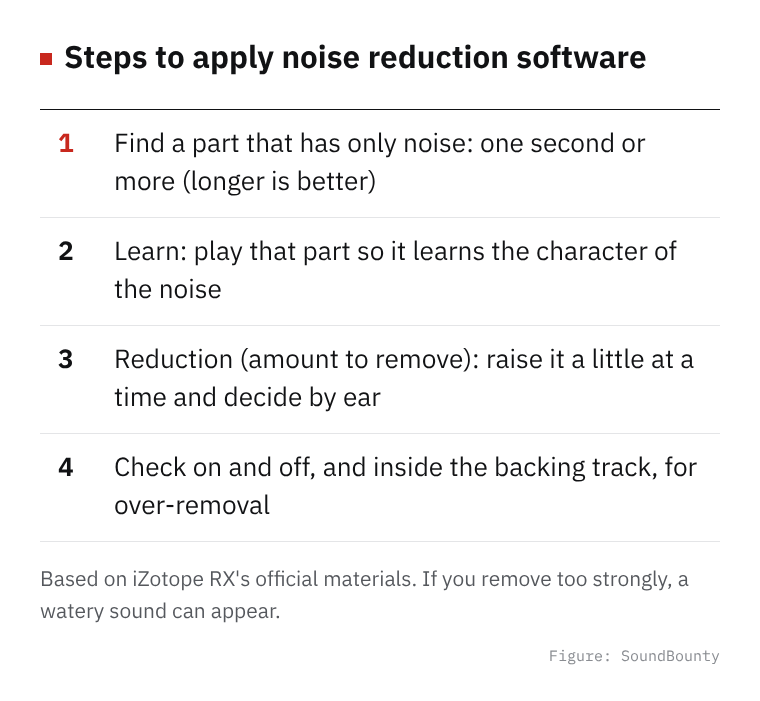
Figure: SoundBounty
How noise reduction software works
iZotope RX’s Voice De-noise is a plug-in that reduces noise in a voice. The official user guide explains that it splits the sound into 64 bands, decides a “threshold” for each band (the level below which sound is treated as noise), and lowers the parts below the threshold. It lets the sound through while the voice is present and lowers only the noise-only parts, in effect a gate for each band.
RX’s Spectral De-noise uses a slightly different method. It learns the character of the noise (a profile) and subtracts it from the sound, and is explained as usable for air conditioners, fans, tape hiss and complex hum. It separates “tonal noise”, such as hum with a pitch, from “random noise”, such as hiss, and lets you reduce them by separate amounts.
However, the plug-in version of Spectral De-noise is explained as heavier to process and with larger latency than Voice De-noise.
Source: iZotope RX 12 user guide (Voice De-noise, Spectral De-noise)
Basic steps
- Find a part that has only noise: look for a part with no voice, such as before or after the song, or a rest between phrases. The official materials recommend a noise-only part of at least one second. The Spectral De-noise explanation says to choose as long a part as possible (a few seconds is a guide).
- Press Learn: play the chosen part so it learns the character of the noise. The longer you let it listen, the more the threshold is set at a suitable position.
- Decide the reduction (amount removed): change the amount a little at a time and decide by ear. iZotope’s materials caution against overdoing it.
- Compare with the sounds before and after: switch on and off and check that the quality of the voice has not changed.
When the same sound is sounding all through the recording (such as an air conditioner), learning manually (Manual) suits. When the noise changes over time, there is an automatic (Adaptive / Auto) mode that changes the threshold automatically to match the level of the noise.
Sources: iZotope RX 12 user guide, iZotope Learn (Reducing Ambient Noise from Home Studio Recordings)
Settings for singing
Voice De-noise has modes for “Dialogue (speech)” and for “Music”. According to the official user guide, the speech mode reacts quickly to changes in the noise, so it does not suit processing long sustained sounds like singing. The music mode is less likely to lower sustained sounds and is explained as likely to sound natural on singing. For cover songs, it may be good to try the music mode first.
You can also choose the filter type (Filter Type). Surgical removes more noise, but it changes the tone, and “chirpy” or “underwater” sounds (musical noise) can remain. Gentle is natural, but it is explained as less able to remove the “shimmery” feel of the high frequencies.
Source: iZotope RX 12 user guide (Voice De-noise)
Tips to avoid overdoing it
iZotope Learn’s article introduces four tips.
- Apply it little by little: the “aftertaste” sounds that noise reduction produces can grate on the ear more than the original noise. It is explained that applying it gently several times often gives better results than one strong pass.
- Apply a high-pass filter first: below the range of the voice there is a lot of noise and low rumble. If you cut the lows with a high-pass before noise reduction, the noise reduction can focus on noise in the range of the voice.
- Remove the rests more strongly on their own: for noise you cannot get rid of, process only the rests in the singing separately with a stronger setting. This avoids the “watery” sound.
- Listen with the backing track: quiet sounds can become inaudible when other instruments come in. Listen inside the song and check that you have not removed too much.
If sounds like “watery” or “chirpy” appear, it may be a sign that you are removing too much. It is also explained that removing strongly damages even quiet parts of the voice.
Sources: iZotope Learn (Reducing Ambient Noise from Home Studio Recordings), iZotope RX 12 user guide (Spectral De-noise)
How to choose software
Noise reduction software differs by type in the noise it is good at and in ease of use. The features and support of each product are compared in our noise reduction comparison.
Frequently asked questions
Q. If I use noise reduction, do I not need noise measures at recording?
No. Noise reduction is an aid after recording. The bigger the original noise, the more you have to remove and the more the voice tends to be affected. Measures at the source come first: microphone position, input level and where the noise comes from.
Q. What if there is no noise-only part between phrases?
When you have no “noise-only part” to use for learning, one method is to use the automatic (Adaptive) mode. The official user guide explains that Voice De-noise’s automatic mode changes the threshold automatically to match changes in the level of the noise.
Q. Are there fixed settings in numbers?
They change with the voice, the microphone and the kind of noise, so we do not give fixed values. Change it little by little and decide by listening.


Comments