
In a cover song, it is common that “I like the singing, but the pitch drifts here and there”. Pitch correction is what you use then. This article explains the difference between two types of pitch correction and the steps for a natural result, based on the makers’ official help.
Disclosure: This article contains affiliate links. If you buy through them, SoundBounty may earn a commission at no extra cost to you. Information is as of the date we checked it and can change.
Key points
- Pitch correction comes in a “type that corrects automatically” and a “type that fixes each note after recording”.
- For a natural finish, the type that fixes each note after recording suits.
- At first, set the correction strength low. Only notes that are far off get fixed.
- You can reduce wobble but keep vibrato as it is.
- Correction is generally applied before the compressor.
Two types of pitch correction
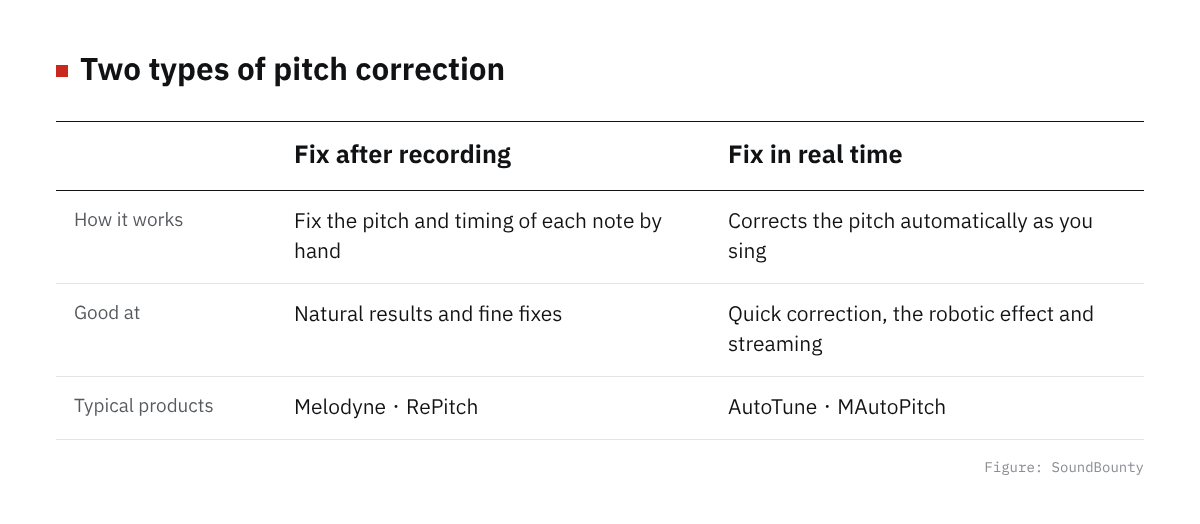
Figure: SoundBounty
The type that corrects automatically
The plug-in detects the note you are singing automatically and pulls it toward a nearby pitch. There are few settings and you can use it right away. For example, MeldaProduction’s “MAutoPitch” is a free plug-in that automatically corrects singing and single-note instruments. MeldaProduction presents it as “free automatic vocal tuning”. See it on the official site
The type that fixes each note after recording
It analyzes the recorded voice, shows it on screen as blocks of notes and lets you fix them one at a time. The representative one is Celemony’s “Melodyne”. Melodyne is explained as letting you take out each note in a recording and fix its pitch, position and length intuitively.
When you want a natural finish, this type suits you, because you decide which notes to fix and by how much. The steps in this article use this type as the main example.
Steps in Melodyne
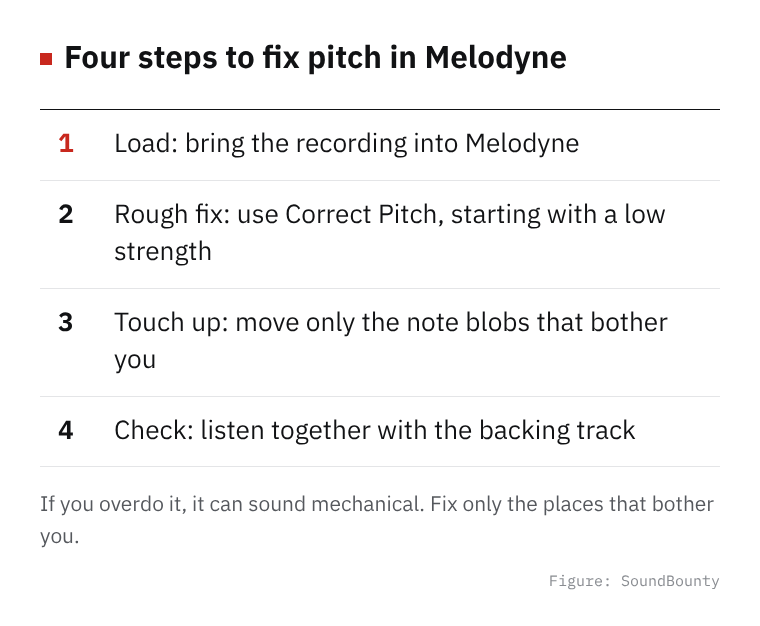
Figure: SoundBounty
Video: “Pitch correction basics in Melodyne essential” (official Celemony YouTube channel; narration in English) Watch on YouTube
From here we explain based on how to use Melodyne 5 in Celemony’s official help. The functions you can use differ by edition.
Sources: Celemony help (Melodyne 5 essential quick start), Celemony help (Correct Pitch macro), Celemony help (Note Separation tool)
1. Load the recording
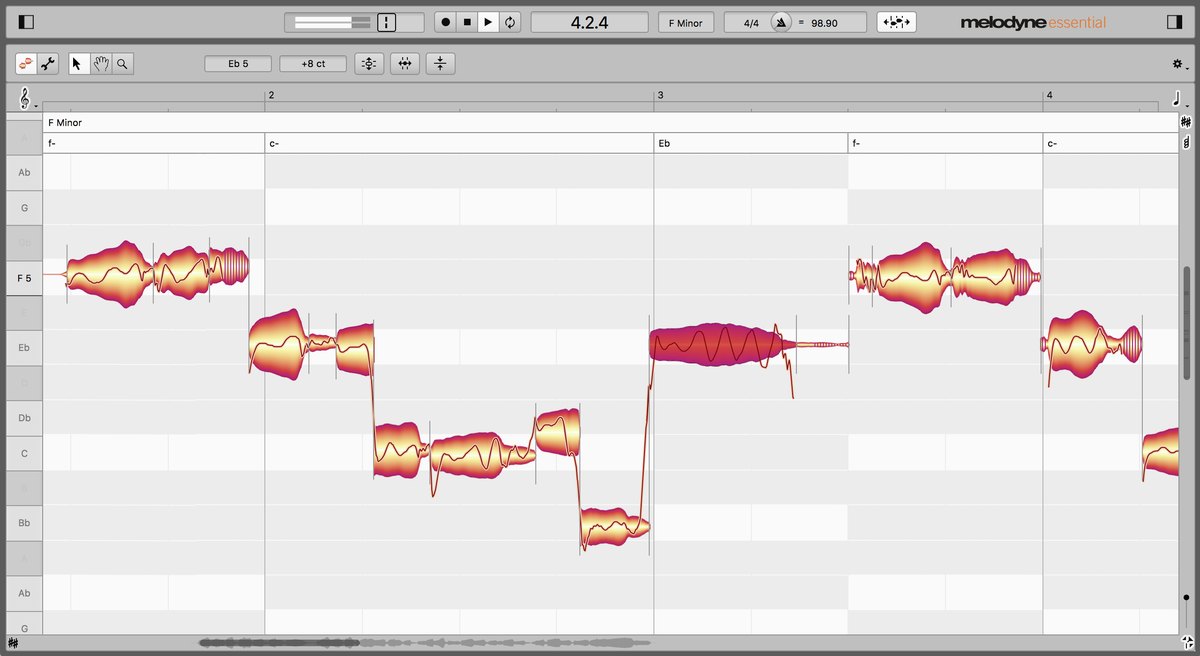
You can use Melodyne as standalone software, or inside a DAW. When you load a recording, the notes are shown in a form called “blobs”. For vocals, Melodyne normally chooses an algorithm called “Melodic”.
2. Roughly fix it with the “Correct Pitch” macro
A macro is a function that fixes the selected notes together. If you select no notes, it works on the whole recording. The Correct Pitch macro has two sliders.
- Upper slider (strength of correction): 0% has no effect and 100% is full. By default it pulls to the nearest semitone. You can also pull to the notes of a scale to suit the key of the song.
- Lower slider (correction of wobble): reduces pitch drift (the slow wavering of pitch). Fast movement such as vibrato is left as it is.
At a low setting, only notes that are far off get fixed. Notes that are already close are left alone. The further you move the slider to the right, the more it works even on close notes, and at 100% everything is at the correct pitch.
You can move the two sliders while playing. You can check not only by ear but also by the movement of the blobs on screen.
3. Touch up note by note
Fix by hand the notes the macro could not fully fix. With Melodyne’s main tool you can do the following.
- Change the pitch: grab the middle of a blob and drag it up or down. It moves by semitones. Holding the Alt key takes it off the grid so you can move it finely.
- When only the pitch is off: double-click the blob and it snaps at once to the intended pitch.
- Change position or length: drag left or right to move the start or end.
If the pitch slides off partway through a note, one way is to separate the note and fix each resulting part. For separation you use the “note separation tool”.
4. Listen with the backing track to check
Finally, always listen together with the backing track. Listening to the vocal alone shows many things that bother you, and you tend to overdo the fixes.
Tips for a natural finish
- Start with a low strength: start the Correct Pitch strength low. Only notes that are far off get fixed. Raise it little by little where it is not enough.
- Keep the vibrato: correction of wobble does not affect fast movement like vibrato. You can keep the expression of the singing.
- Match the key: when the key of the song is clear, pulling to the notes of the scale reduces semitone slips.
- Do not overdo it: if you put everything at the correct pitch, it can sound mechanical. Fix only the places that bother you.
The order of plug-ins
Pitch correction is generally applied before the EQ and compressor. Celemony’s help says Melodyne’s “Note Leveling” macro suits evening out differences in volume to prepare the input to a compressor placed after Melodyne. The whole order is explained in The order of plug-ins for a cover-song mix.
How to choose
How much you can fix differs by product in pitch correction. Melodyne 5 essential uses only the main tool. Larger editions add tools for fixing vibrato, volume, formants (the thickness of the voice) and more.
We compare them with this site’s scores based on official information. See our pitch correction plug-in comparison. If you want to start for free, there is also Free plug-ins for a cover-song mix.
Score 2.6 / 5 (average of the 15 products compared: 2.8)→ See all
- Specs last checked
- 2026/09/25
- Natural result
- Pitch and timing
- Real time
- None
- Harmony and multiple tracks
- One note line at a time
- Price (store, date)
- $99 [PB, checked Oct 26]
Image: from Celemony’s official press and retailer materials
It sometimes gets cheaper in a sale. Before you buy, check the price and whether there is a sale on Plugin Boutique’s display. How to install and authorize a plug-in is explained in How to install plug-ins you bought in a sale or got as a free giveaway.
Frequently asked questions
Q. Which is better, auto correction or note-by-note fixing?
For ease, auto correction. For naturalness and fine adjustment, note-by-note fixing. You can also try free auto correction first and switch to a fixing type if it feels lacking.
Q. Does pitch correction make the voice sound unnatural?
It tends to sound unnatural if you apply it too strongly. Starting with a low strength and fixing only the notes that are far off gives a natural finish.
Q. Do I correct harmonies too?
Fix only what is needed, as with the main vocal. Plug-ins that make harmonies are compared in our harmony and doubling comparison.
Q. Are there fixed settings in numbers?
They change with the voice and the song, so we do not give fixed values. Decide by listening while playing.


Comments