
Disclosure: This page may contain affiliate links. Prices were checked on the date shown and may change.
An introduction to Waves COSMOS Sample Finder, based on information from the maker and distributors: what it does, how to use it and who it may suit. It is not scored.
COSMOS uses an AI neural networks engine to analyze all the samples on your hard drive, and then categorizes and auto-tags the instrument, timbre, style, key, BPM, and sonic characteristics
— Waves official site
What is COSMOS Sample Finder?
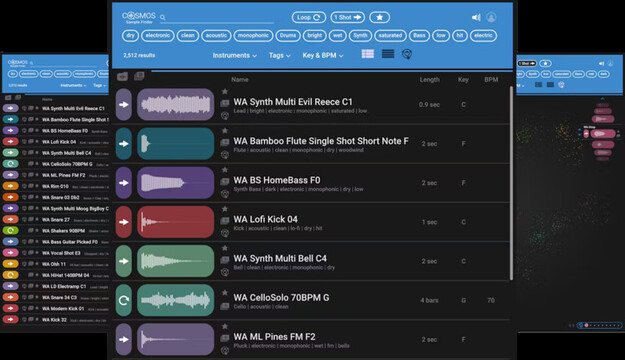
COSMOS Sample Finder is a sample-organizing and search tool from Waves. It scans the audio files on a computer, analyzes their content and tags them automatically with information such as instrument, timbre, style, key and BPM. It is a tool for finding material rather than a plug-in that produces sound.
According to the store description, even a file with a meaningless name such as asdf_#12C.wav is analyzed and sorted into the database, so users can search without relying on file names. Choosing the tags "saturated" and "kick", for example, brings up saturated kick samples.
Searching works by combining tags. Results can also be narrowed by properties such as loop or one-shot and dry or wet, so a query like a bright, reverby drum loop at 120 BPM, or a cinematic synth sample in F# minor, can be expressed. Three views are available: waveform, list and COSMOS's own cluster view.
It runs as a standalone application and can also be opened from the Waves CR8 sampler. WAV, AIF, OGG and FLAC files are supported, and more than 2,500 royalty-free samples are included. Supported systems are Windows 10 or later and macOS Monterey 12 through Sequoia 15.
Key features
AI analysis with automatic tagging
The sample folders on a drive are analyzed with neural-network technology, and instrument, timbre, style, key and BPM are recorded in a database. It may help when many files have unorganized names.
Search by combining tags
Several tags such as saturated and kick can be selected together. Properties like loop versus one-shot and dry versus wet can also be used as conditions, which helps narrow down to material close to a track's idea.
Three views
Waveform, list and cluster views can be switched. The cluster view groups similar-sounding samples near each other, which may be useful for browsing around a target sound.
Favorites and collections
Frequently used samples can be assigned to a favorites list or grouped into collections, for example per song or per genre.
Supported formats and bundled samples
WAV, AIF, OGG and FLAC are supported. More than 2,500 royalty-free samples are included, so searching can be tried even with a small personal library.
Standalone or from CR8
It can be used as a standalone app or opened from the Waves CR8 sampler, which suits both browsing without a DAW and building sounds in a sampler.
Specifications
| Item | Details |
|---|---|
| Type | AI-based sample organizer and search tool |
| Supported files | WAV / AIF / OGG / FLAC |
| Included samples | More than 2,500 (royalty-free) |
| Views | Waveform / list / cluster |
| Usage | Standalone app, or opened from Waves CR8 |
| Supported OS | macOS Monterey 12, Ventura 13, Sonoma 14, Sequoia 15; Windows 10 or later |
| Plug-in formats | Mac: VST / AU / AAX; Windows: VST / AAX |
What is included and system requirements
- COSMOS Sample Finder application
- More than 2,500 royalty-free samples
- Supported OS: macOS Monterey 12 to Sequoia 15, Windows 10 or later
- Formats: VST / AU / AAX on Mac, VST / AAX on Windows
How to use it
- Install the product and activate the license, for example through Waves Central.
- Launch COSMOS as a standalone application (it can also be opened from the CR8 sampler).
- Point it at the folders that hold your samples and start the analysis.
- When the analysis finishes, tags such as instrument, timbre, key and BPM are added automatically.
- Select tags that match the sound you want and review results in the waveform, list or cluster view.
- Add samples you like to favorites or collections.
- Drag the samples you find into a DAW or sampler.
Where it may come in handy
Beat making
It may help when looking for a specific sound among thousands of drum samples. Narrowing with tags such as saturated and kick can bring up candidates without remembering file names.
Revisiting old material
Sample folders collected over the years can hold forgotten files. Analyzing them and sorting by tags may help rediscover them.
Finding material that matches key and tempo
When a track's key and BPM are already decided, loops and one-shots that match those conditions can be searched for.
Organizing material for film and sound design
Cinematic synths or effect sounds that are easier to find by mood can be located by tag search.
Who it may suit
- People with large sample libraries who spend time searching for files
- People who want to search unorganized files by their content
- People who often look for material matching a tempo or key
- People who already use the Waves CR8 sampler
Good to know before you buy
- Tags come from automatic AI analysis, so results may need to be checked by ear when a tag does not match the sound.
- Supported systems are macOS Monterey 12 through Sequoia 15 and Windows 10 or later.
- Plug-in formats are VST / AU / AAX on Mac and VST / AAX on Windows.
- Files that can be analyzed are WAV, AIF, OGG and FLAC files on the computer.
Price
Please check the official page for the price.
See COSMOS Sample Finder on the product page
More of the same kind
Other introduction articles of the same kind.
- Digital Brain Instruments DSP Manager 2
- Cleanvoice Cleanvoice AI
- Tracktion StageBox
- NUGEN Audio AMB
- Digital Brain Instruments Oscar
- Digital Brain Instruments Voxpat Pro
We have introduced 215 other products from Waves.
- Waves SoundGrid Rack for VENUE
- Waves Waves SuperRack SoundGrid
- Waves SuperRack Performer
- Waves Electric 88 Piano
- Waves Retro Fi
See the full list in Product database: Streaming and recording software and others.
Sources: pluginboutique.com (checked 2026-10-27)




Comments