
When you stream cover songs, or hold an online call with background music playing, the “loopback” function of an audio interface always comes up. This article summarizes how loopback works and where to use it, examples of supported products, notes for Windows and macOS, and tips to avoid feedback and doubled audio.
Disclosure: This article contains affiliate links. If you buy through them, SoundBounty may earn a commission at no extra cost to you. Information is as of the date we checked it and can change.
What loopback is
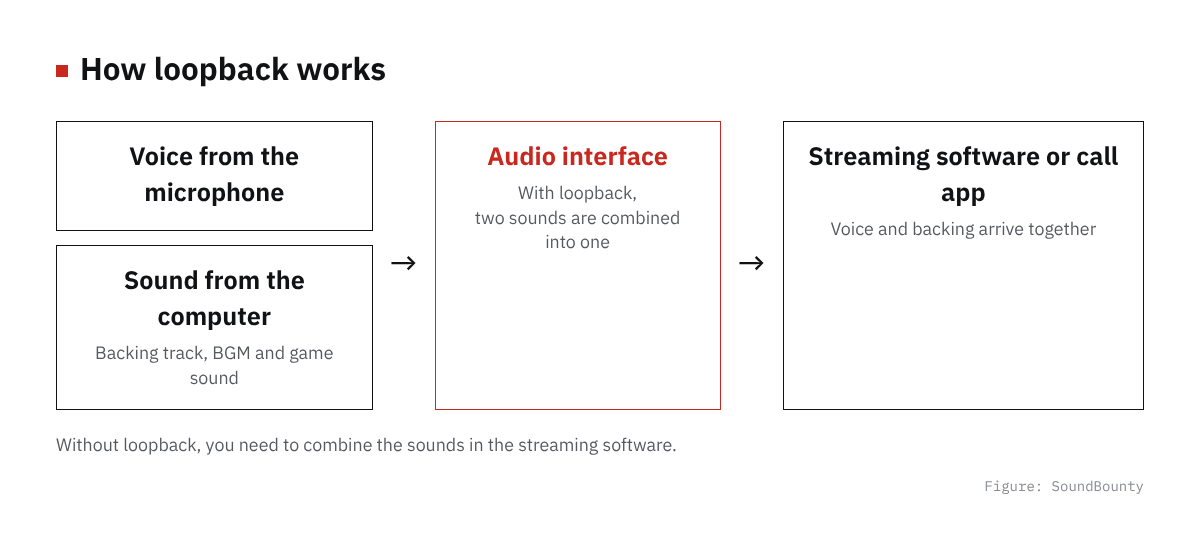
Figure: SoundBounty
Loopback is a function that mixes the sound playing on the computer (BGM, the backing track, the voice of the person on a call, game sound and so on) with the microphone’s voice inside the audio interface, and sends it back to streaming or call software as one audio stream. From the streaming software’s point of view, you can receive both with just one input coming from the interface, without bringing in the “microphone” and the “PC playback sound” separately.
A similar word is “monitoring”, but that is a function for checking your own voice in your own headphones, and is not a mechanism for sending sound to viewers or the other person on a call. It is easier not to confuse them if you think of loopback as “the function that makes the sound you send to others”, and monitoring as “the function for you to check”.
Where you use it
Cover-song and singing-with-guitar streams
In a cover-song stream where you sing while playing a karaoke track or backing track on the computer, mixing the backing track and the singing voice with loopback and sending it to the streaming software is the standard setup. On many models you can adjust the volume of the backing track and your own voice separately with the interface’s mixer or loopback knob, so you can decide the volume balance that reaches viewers on the spot.
Podcasts and game commentary
It is also used to bring in game sound, effects and the voice of the other person in a call app through loopback, and record or stream them together with your own voice. If you want to keep the backing track and voice on separate tracks for editing, it is also worth considering a setting in the DAW to record multitrack, separately from loopback.
Online calls and online lessons
Loopback is also used for playing accompaniment while speaking in an online lesson, or mixing BGM into the sound you send when sharing your screen. But call apps also have echo cancellation, so loopback and echo cancellation can conflict and the sound can break up. For calls, it is safer to first check that the call is stable with only your own voice, and then add BGM with loopback.
Examples of products that support loopback
All of these are models whose official information states loopback support. A wider comparison of models is summarized in our audio interface comparison.
| Model | About its loopback |
|---|---|
| Yamaha UR12MK3 | Has “2 mono + 1 stereo loopback” in its input mixing channels. Supports live streaming with simple operation |
| Audient EVO 4 | A loopback function that lets you record and stream the microphone input and the PC playback sound at the same time. Intended for podcasts and conversation streams |
| MOTU M2 | A dedicated driver provides loopback channels to the host computer. It is said to be usable for live streaming to YouTube and others |
If you want to put together a more serious gear setup from scratch, also check What you need to start DTM.
Notes by operating system
Windows
Windows has long had a function called “Stereo Mix” that treats the PC playback sound as a recording device, but many recent USB audio interfaces do not support it, so the basic approach is to use the loopback function provided by each model’s dedicated driver. In the streaming software’s audio input settings, you need to choose the interface’s loopback channel (named “DAW”, “Loopback” and so on depending on the model).
macOS
macOS also has no standard function equivalent to Windows’ Stereo Mix, and if the interface itself does not support loopback, the common method is to install a virtual audio driver such as BlackHole separately. If the interface itself supports loopback, as in the table above, you can do the same without extra software. Before you buy, check the maker’s official page for loopback support on the operating system you use.
Tips to avoid feedback and doubled audio
The troubles that tend to happen when you use loopback are doubled sound and feedback. The main causes and fixes are as follows.
- The streaming software also brings in PC audio: if you are already sending BGM through loopback but the streaming software’s desktop audio capture is also on, the same sound gets layered twice. Narrow it to one or the other.
- The microphone picks up the speaker output on a call app: if you play sound from speakers while recording with another microphone, sound goes around by a path separate from loopback and causes feedback. While streaming or on a call, monitor with headphones as a rule. How to choose low-delay monitor headphones is explained in How to choose monitor headphones.
- The loopback volume is too loud: if the BGM volume through loopback is loud, the voice is hard to make out on the viewers’ side. It is reassuring to check the volume balance with a recording or a test stream before you go live.
Frequently asked questions
Q. Can I not stream with an interface that has no loopback?
If you bring in the PC playback sound with the streaming software’s desktop audio capture, you can stream even without loopback. But you cannot adjust the volume balance of the microphone and PC audio together on the interface side, so fine adjustment depends on the software’s settings.
Q. Can I also record the loopback sound in the DAW?
On supported interfaces, some models let you choose the loopback channel as the input in the DAW and record it. Support differs by model, so check the manual or the official page before you buy.
Q. What if I want to record the backing track and voice separately in a cover-song stream?
Audio combined into one with loopback is convenient for streaming, but it makes it harder to edit the backing track and voice separately later. If you plan to edit, also consider a setting that records the backing track and singing voice as separate tracks in the DAW at the same time.
Q. How do I set it in the streaming software?
In many streaming programs, the interface’s loopback channel appears in the list of audio input devices. It is often shown under a different name from the microphone input alone, so choose the item named “Loopback” or “DAW”, not “Microphone”, and the sure way is to play a sound and test, choosing the correct input again if needed.
Summary
Loopback is a function that mixes the PC playback sound and the microphone’s voice inside the audio interface and sends them to streaming or call software, and it is widely used for cover-song streams and podcasts. Support differs by operating system and model, so check the official information before you buy, and when you use it, watch for overlap with desktop audio capture and speaker sound going around.


Comments