
This article is for people who want to record cover songs or narration at home but do not know where to start. It summarizes the basic steps from connecting gear to exporting after recording. For the numerical guides, we introduce generally recommended values with sources. If you are unsure about choosing gear itself, it goes more smoothly to check the whole picture first in What you need to start DTM.
Disclosure: This article contains affiliate links. If you buy through them, SoundBounty may earn a commission at no extra cost to you. Information is as of the date we checked it and can change.
1. Connect the gear
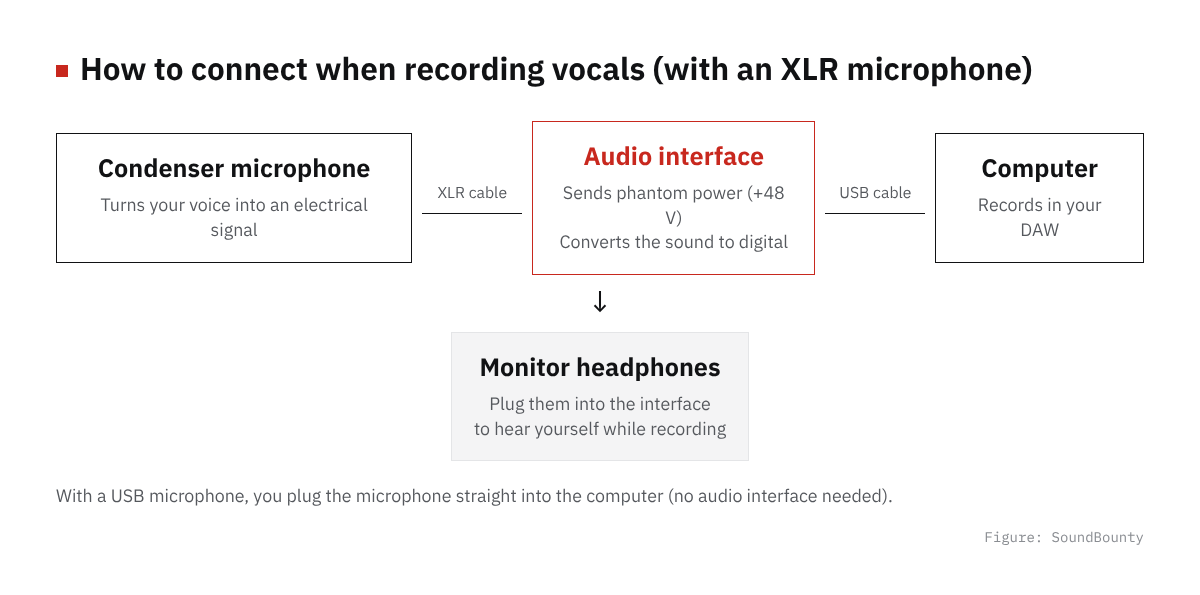
Figure: SoundBounty
The basic connection order is microphone → audio interface → computer. If you use a condenser microphone, you need to turn on +48 V phantom power on the audio interface. Plug the microphone into the interface’s XLR input and connect it to the computer with the USB cable, then choose that interface as the input and output device in the DAW’s “audio settings”. Turning the interface’s gain knob down once before you start recording avoids an unexpected loud sound when you connect. If you want to review the choice of model, see How to choose an audio interface; for comparing microphones themselves, see How to choose a condenser microphone and Dynamic vs condenser microphones. The role of the part that boosts the microphone’s signal (the microphone preamp) is explained in detail in What is a microphone preamp?
2. Decide the distance and angle to the microphone
For the distance to the microphone, Shure’s explanation says that for studio recording, about 10 to 20 cm suits most voices. If you are too close, with a unidirectional microphone the “proximity effect”, where the lows get stronger, tends to appear, and the clarity of the voice also drops. If you are too far, it picks up more room echo. Keeping the distance as constant as you can while singing makes the tone less likely to change (Shure’s explanation). If the room echo itself bothers you, also check A guide to acoustic treatment for home recording.
Angle matters too. A unidirectional (cardioid) microphone picks up sound from the front best, so even when you move your body while singing, keeping your mouth facing the front of the microphone makes the volume and tone more consistent.
3. Attach a pop filter
To prevent “popping”, where plosives on “p” and “b” blow into the microphone and record a thud, put a pop filter between you and the microphone. The pop filter itself also gives a guide for how far from the microphone to sit, and leaving about a fist’s width is said to be easy to handle. Leave a moderate gap between the pop filter and the microphone, and between the pop filter and your mouth.
4. Decide the input level (a guide to avoid clipping)
What you most want to avoid in recording is “clipping”, where the sound distorts. Focusrite’s support article recommends setting the gain so that the loudest part (the peak) is around -12 dBFS, so there is room left even if you suddenly sing loudly. On the maker’s audio interfaces, the lamp turns yellow at -6 dBFS (close to clipping) and red at 0 dBFS (clipping). Set it so that the peak stays within this guide at the loudest part of the song (such as the chorus). See How to set the recording input level (gain) for details.
5. Monitor with headphones
While recording, monitor your voice and the backing track on headphones, not speakers. If you play sound from speakers, the microphone also picks up the backing track, which makes later editing hard. For monitoring headphones, closed-back ones, which leak little sound, suit. Open-back headphones are built so sound leaks out, so the microphone picks up the leaked backing track more easily. You also see a method of singing with one ear off, but understand that this raises the risk of more sound leaking into the microphone. Choosing headphones is explained in detail in How to choose monitor headphones.
6. DAW recording settings (sample rate and bit depth)
Before you start recording, check the sample rate and bit depth in the DAW’s project settings. For sample rate, a CD is 44.1 kHz. YouTube’s help recommends 48 kHz for the audio of uploaded videos, so if you will post as a video, setting 48 kHz makes it less likely you will be unsure later. For bit depth, a CD is 16 bits. The bigger the number, the more finely loudness can be recorded, so it is reassuring to work at 24 bits during recording and editing and export at the end in a format that suits the destination. The items you can set and what they are called differ by DAW, so also check the manual of the DAW you use. If you are looking for a free DAW, Free DAWs you can use also helps.
7. Export after recording
When the recording is done, first export and save it in an uncompressed (or losslessly compressed) format such as WAV. Lossy compression such as MP3 cuts the information of sound the human ear is said to hear poorly, so once converted it cannot return to the original information. If you ask someone else to mix it, or may edit it again later, it is reassuring to keep the working file as WAV without turning it into MP3. As a basic rule, match the sample rate and bit depth when exporting to the values you set in the DAW when recording; keeping the numbers consistent across the whole project is said to be the point for avoiding trouble. If the final destination (a video platform or a client for mixing) specifies a format, export according to that. See Basic export settings for a cover song for details.
Frequently asked questions
Q. Can I record with just one USB microphone?
For narration centered on speech, a USB microphone alone can record. But if you want to use a condenser microphone that needs fine gain adjustment and phantom power, or want to record several sounds at once, a setup with an audio interface gives more freedom to adjust.
Q. Should I apply reverb (effects) while recording?
As a rule, record dry (unprocessed) without effects on the recording itself. Some DAWs and equipment let you apply a little reverb only to the sound you hear in the headphones to make singing easier, but note that if you save the effect into the recording file itself, you can no longer adjust it later.
Q. What should I do if noise bothers me?
If you raise the gain too far, noise is amplified along with it, so first check whether you are within a proper input level. If room sound and echo still bother you, improvement can come from reviewing acoustic treatment of the room, not just the gear.
Summary
For recording vocals at home, just getting these three points right makes a big difference to the result: connecting the gear correctly, keeping the distance and angle to the microphone steady, and keeping the input level within the range where it does not clip. If you sort out the steps once, including the headphone monitoring, the DAW’s recording settings and the export format, the next recording goes much more smoothly. If you want to review your microphone and room further, also refer to the other related buying guides.
How to set the input level (gain) is explained in How to set the recording input level (gain) for a cover song.
How to use microphone distance and a pop filter is explained in Microphone distance and pop filters for cover songs.
When noise gets into a recording, Causes and fixes for noise in a cover-song recording explains causes and fixes by how it sounds.


Comments